Medical HMI
Clinical ventilator operator console built with Qt/QML for patient setup, live waveform monitoring, alarms, trends, therapy controls, and service workflows.
Outcome
A complete bedside ventilator interface with secure access, patient setup, waveform monitoring, safety alarms, trend review, therapy tools, and maintenance screens.

Industry
Medical HMI
Platform
Qt Quick, C++, Touchscreen HMI
Engagement
Clinical operator-console design and prototype
01
45 clinical UI screens
02
Real-time waveform views
03
Alarm-first operator workflow
Case study
The interface needed to make high-risk ventilation data readable at a glance while keeping setup, alarms, therapy, trends, and service workflows organized for a touch-first ICU environment.
A complete bedside ventilator interface with secure access, patient setup, waveform monitoring, safety alarms, trend review, therapy tools, and maintenance screens.
Deliverables
The implementation focuses on maintainable QML composition, C++ integration readiness, responsive screen layouts, and UI states that can be validated against real product data.
Screenshots
Screens from the project showing core workflows, control surfaces, dashboard states, and interaction patterns.
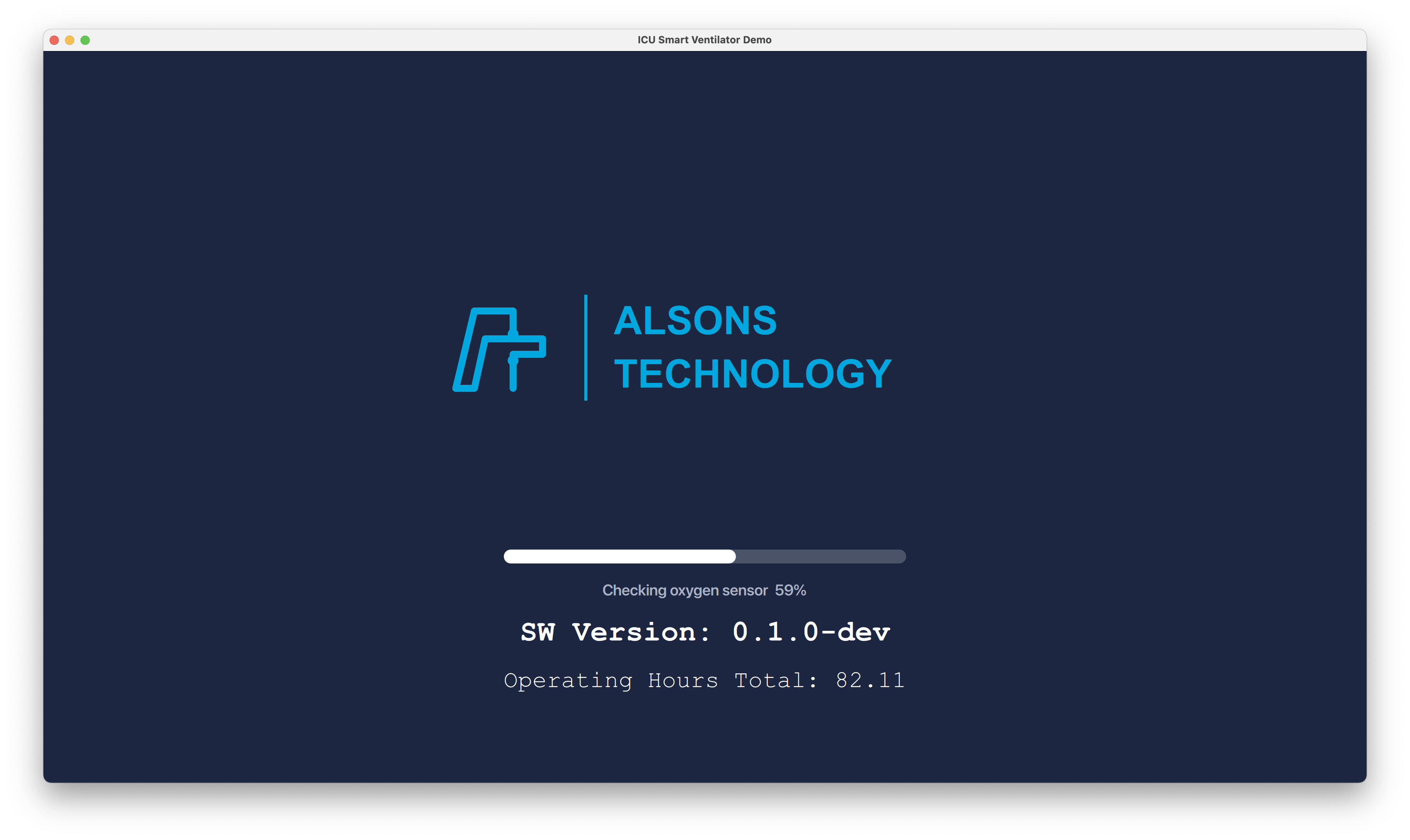
The ventilator starts with a branded self-check screen that validates the oxygen sensor, shows the software version, and displays total operating hours before an operator reaches the clinical UI.
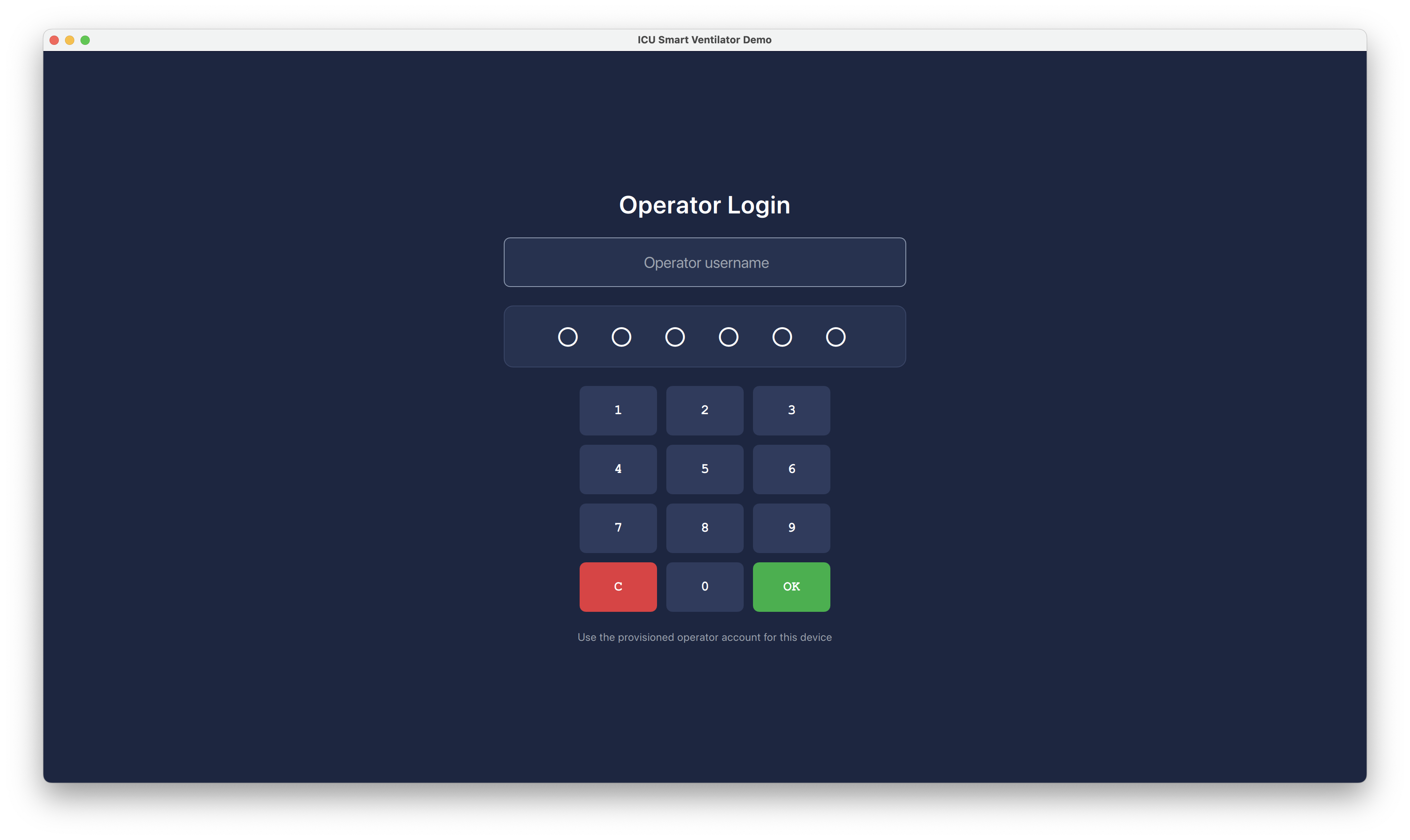
A focused login screen keeps access controlled with a username field, PIN entry, clear correction action, and a confirmation button sized for touch use.
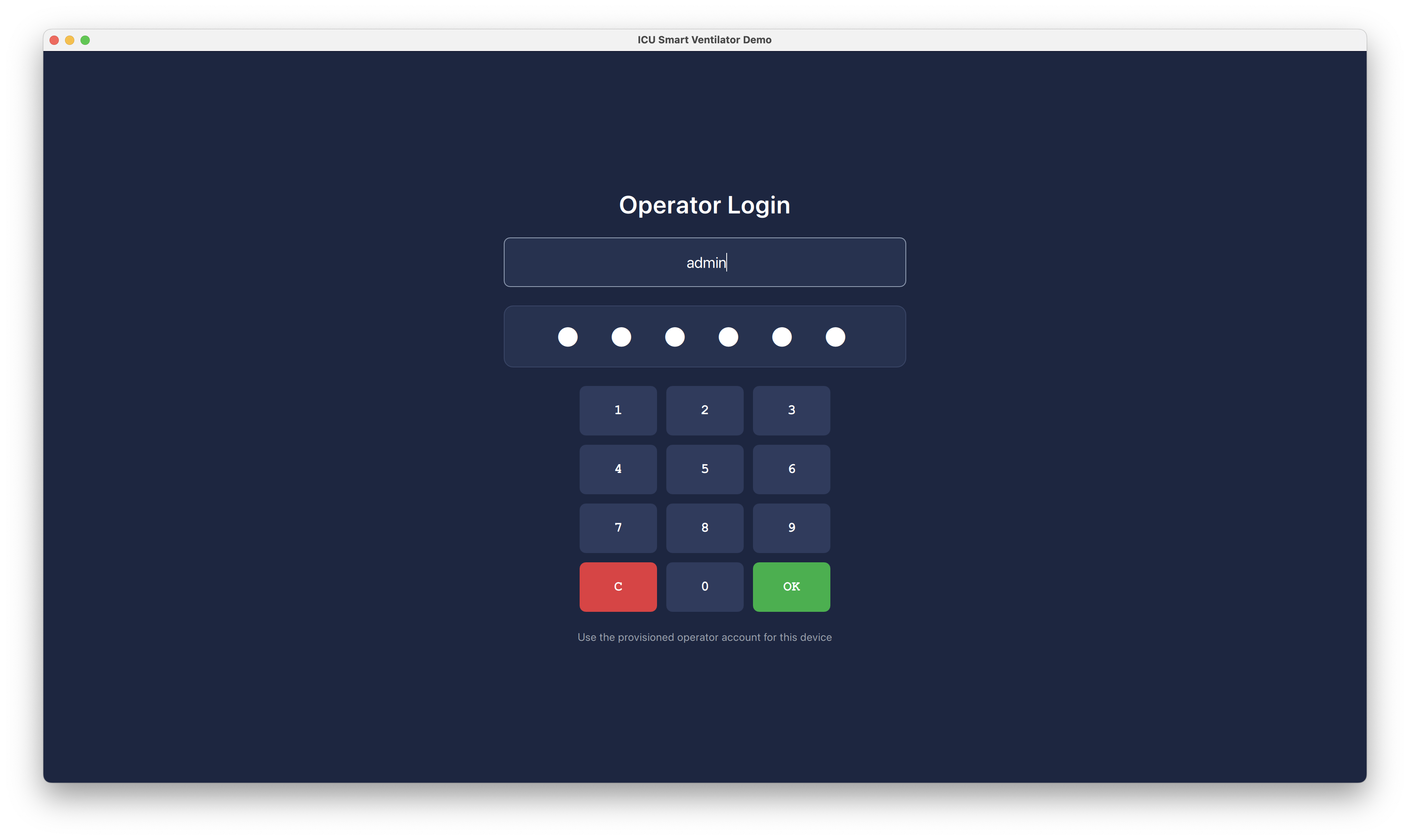
The same login flow after credentials are entered, showing the filled PIN indicators and keeping the operator's next action obvious.
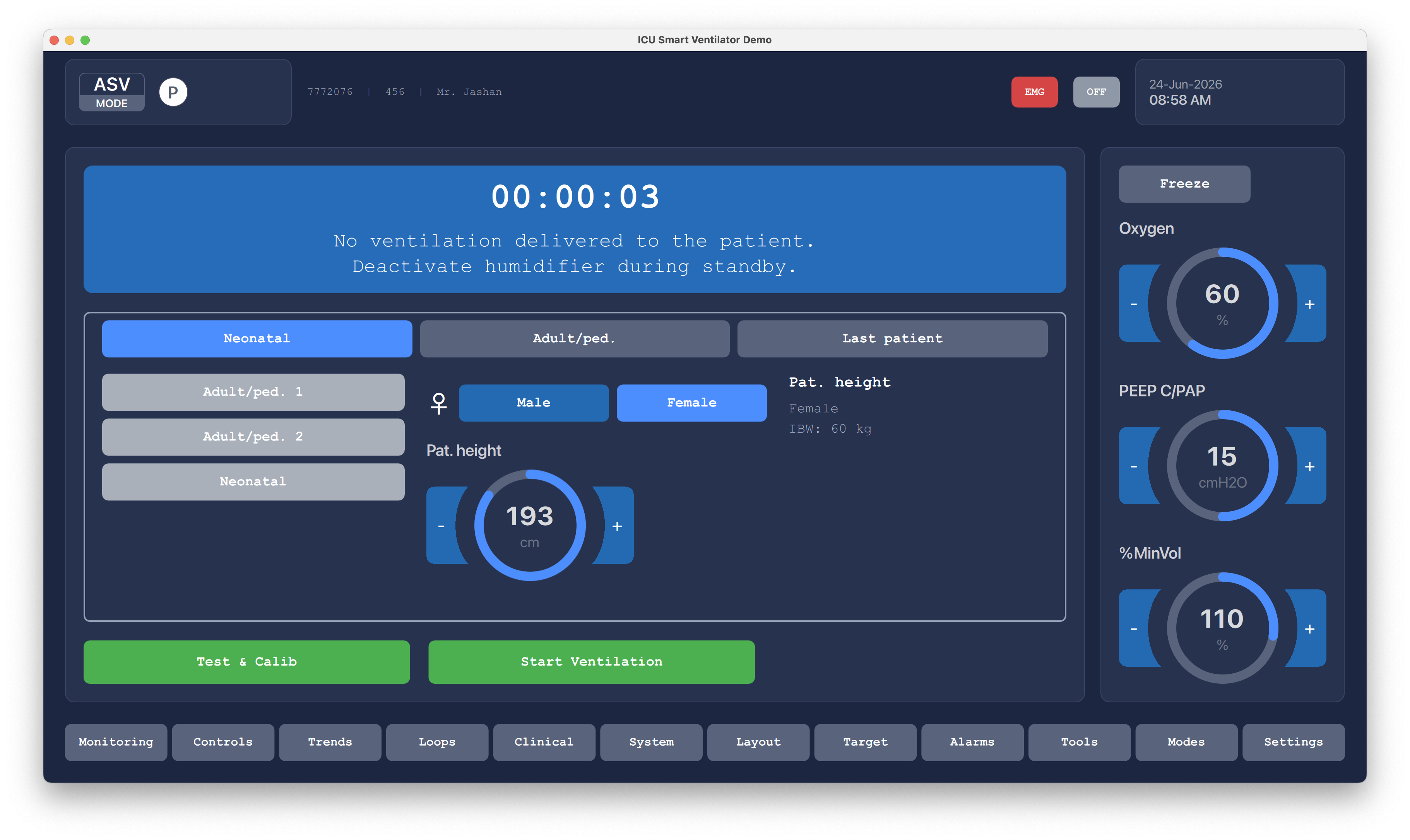
The standby screen makes it clear that ventilation is not being delivered, while allowing the operator to select patient category, set height and gender, run test calibration, and start ventilation.
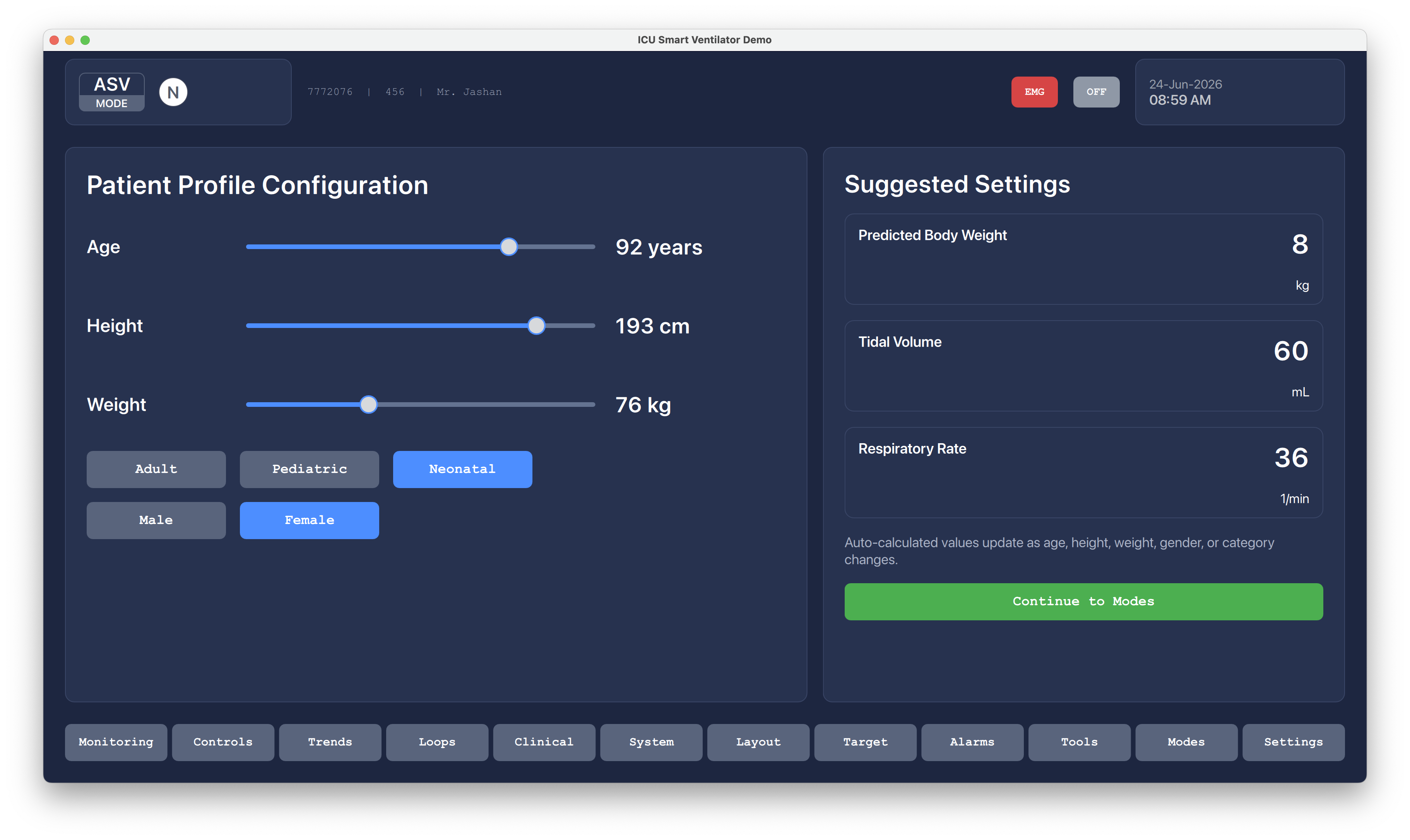
Patient age, height, weight, category, and gender feed suggested clinical settings such as predicted body weight, tidal volume, and respiratory rate.
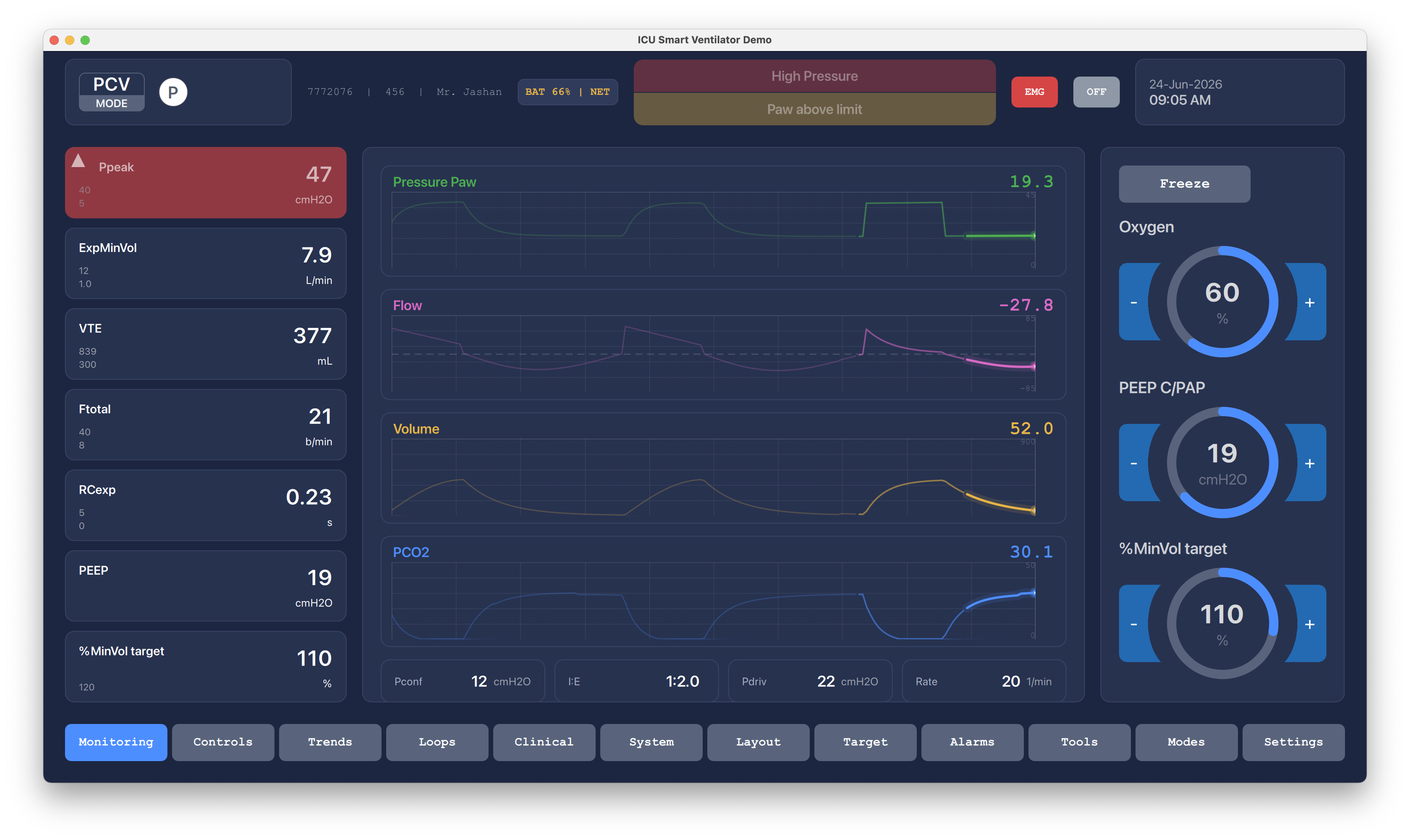
The main monitoring screen combines live pressure, flow, volume, and PCO2 waveforms with measured values, active alarm banners, and quick controls for oxygen, PEEP/CPAP, and minute-volume target.
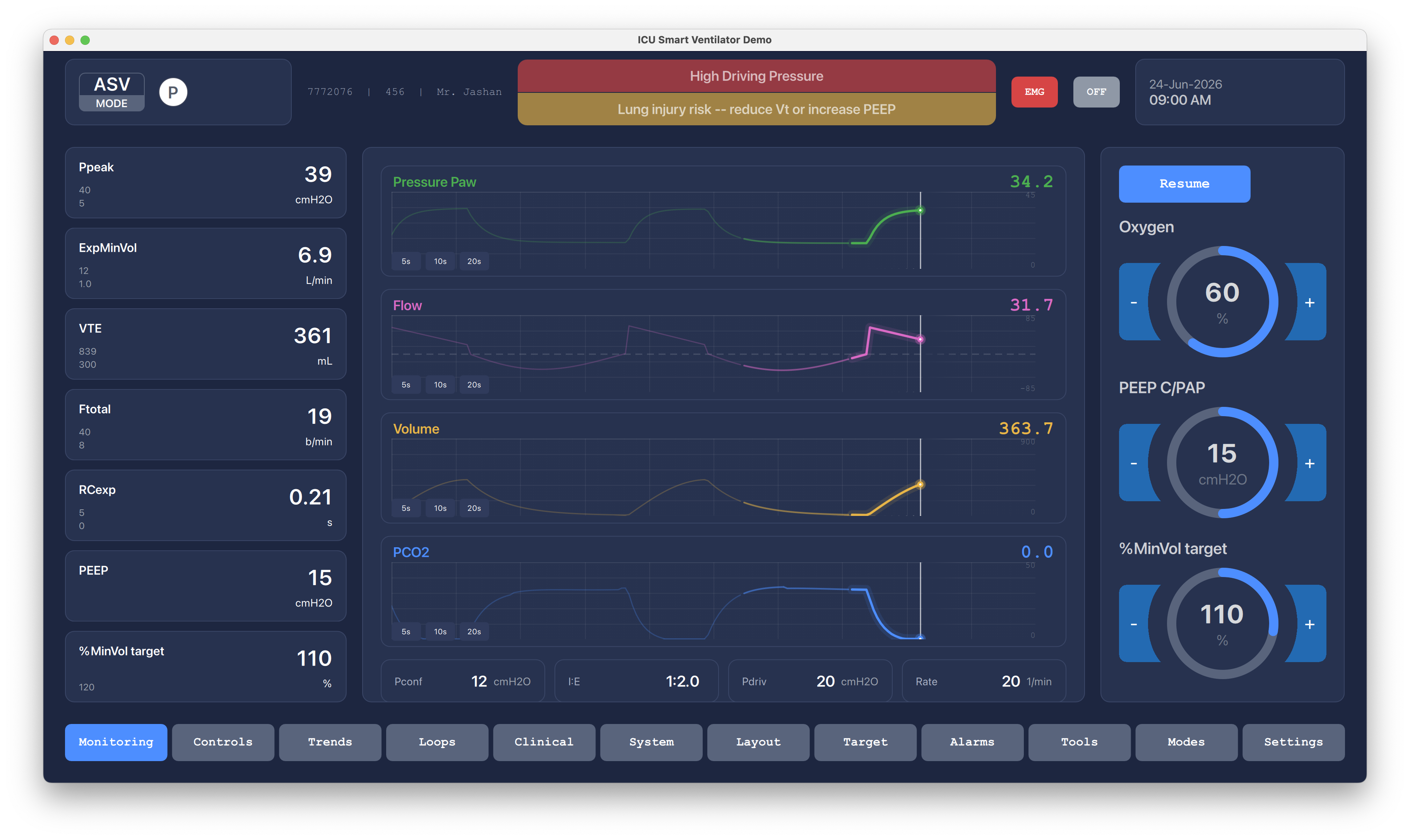
A high driving pressure state shows how the UI uses a stronger warning banner and a practical clinical hint to reduce tidal volume or increase PEEP.
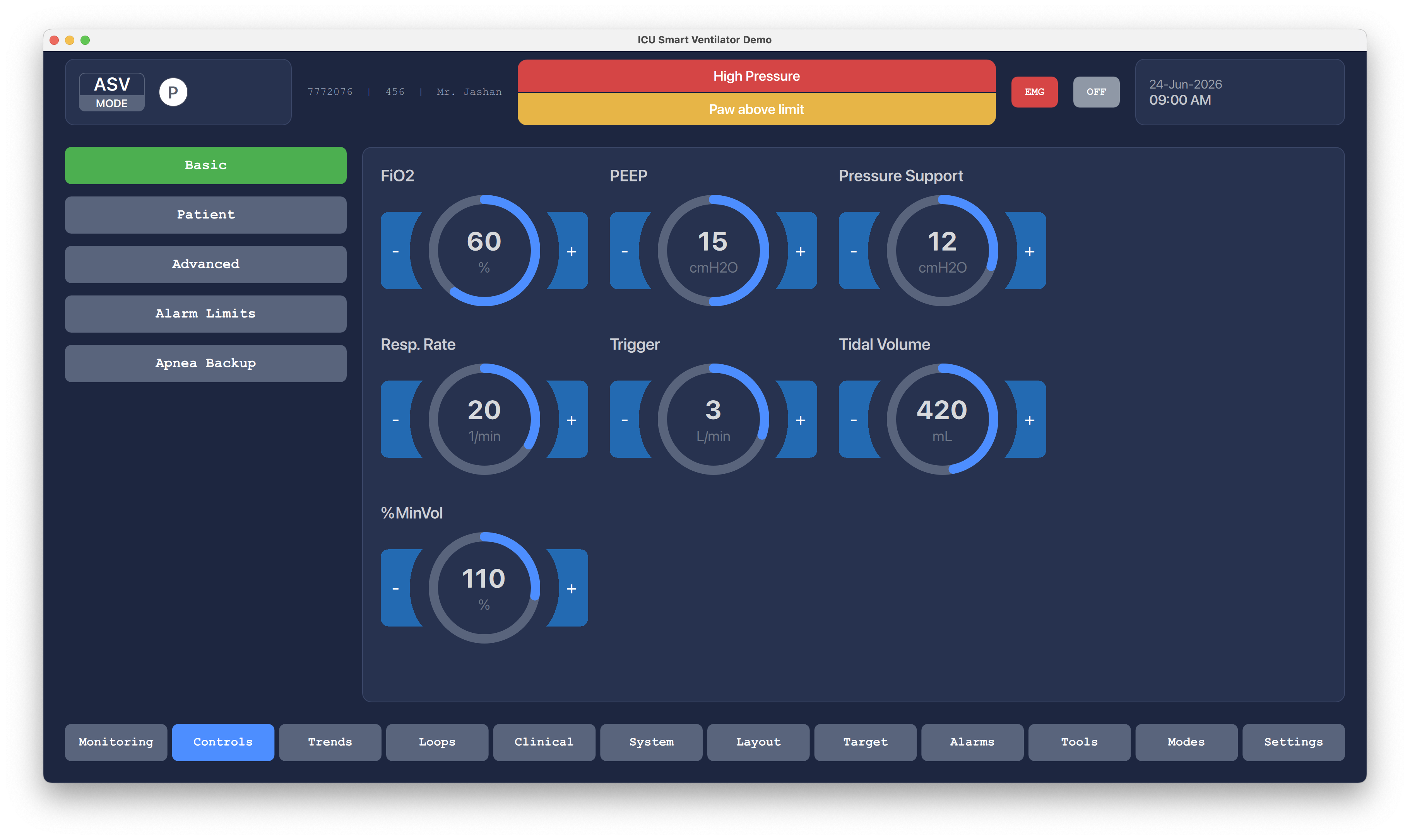
The basic controls tab groups FiO2, PEEP, pressure support, respiratory rate, trigger, tidal volume, and minute-volume target into large circular touch controls.
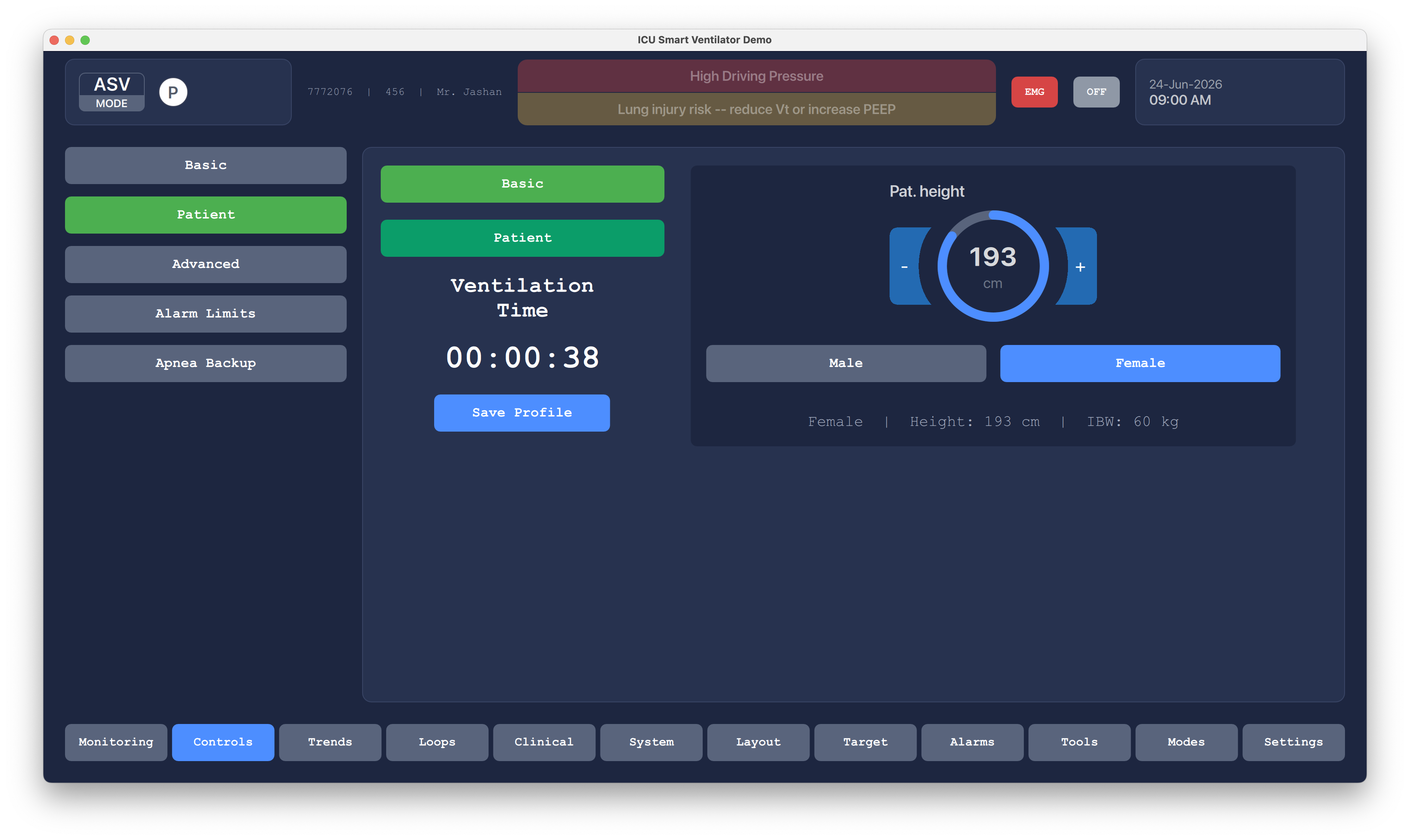
The patient controls view lets staff confirm the active profile, adjust patient height and gender, see calculated ideal body weight, and save the profile during ventilation.
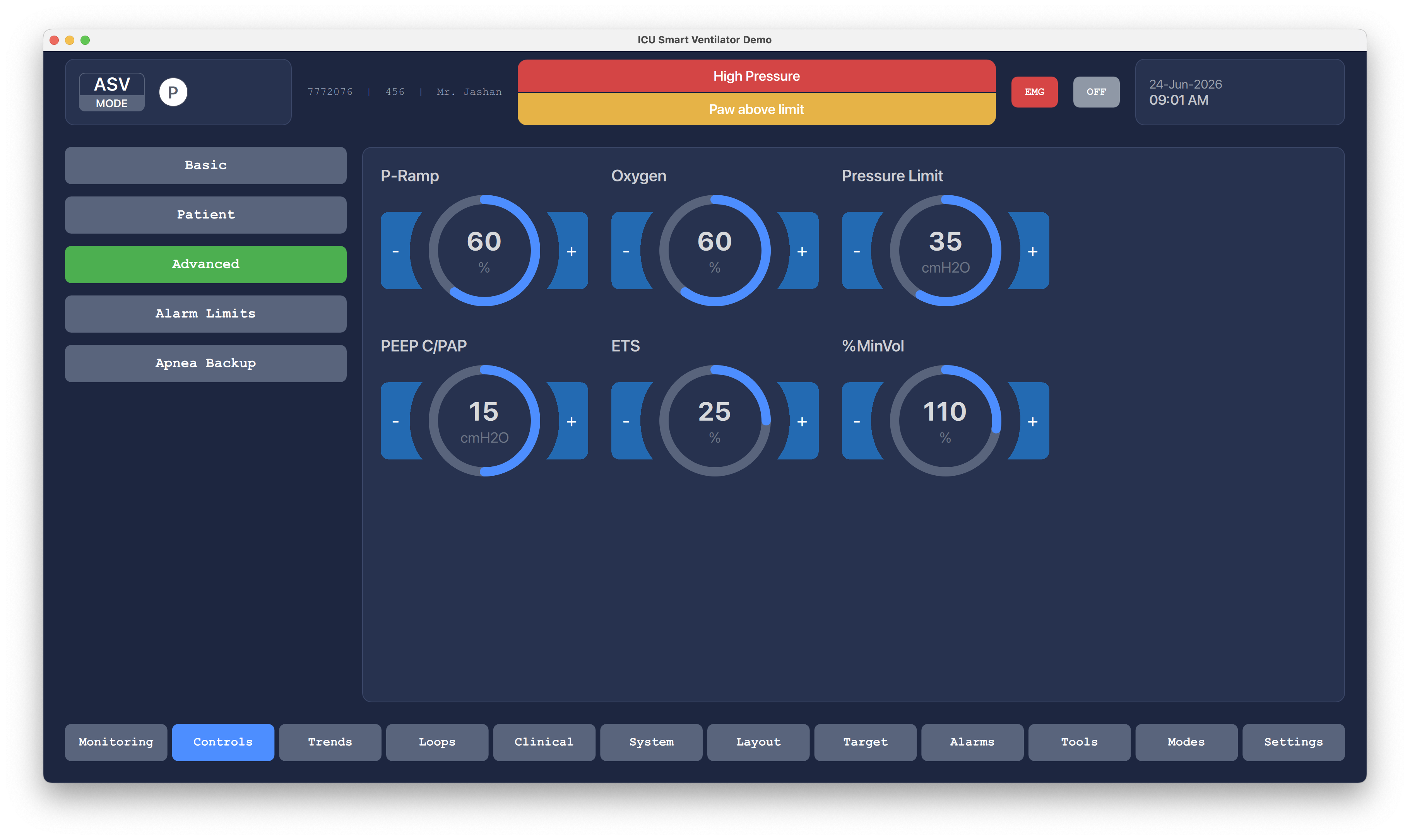
Advanced controls expose ramp, oxygen, pressure limit, PEEP/CPAP, ETS, and minute-volume settings without mixing them into the normal monitoring view.
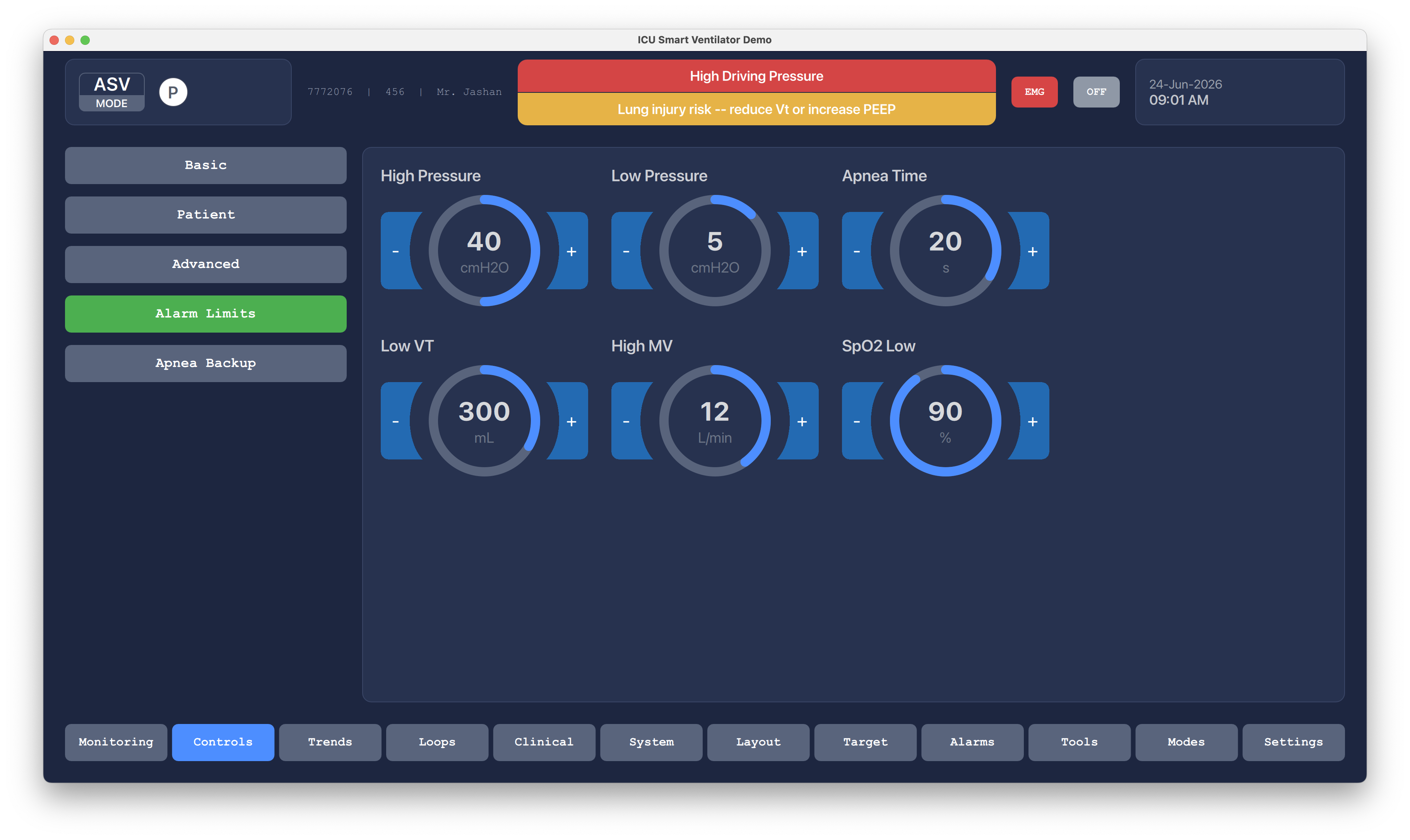
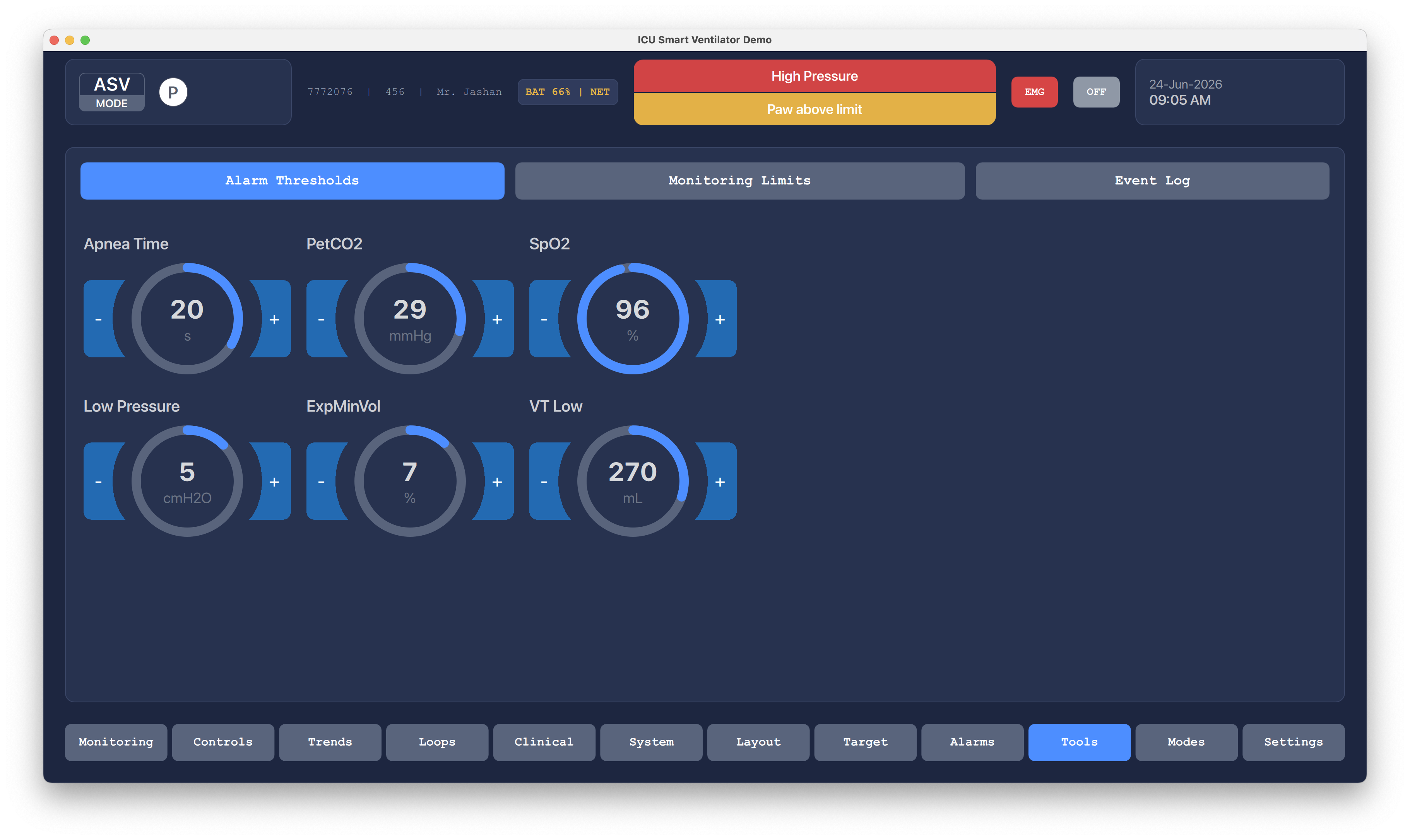
Alarm thresholds for high pressure, low pressure, apnea time, low tidal volume, high minute volume, and low SpO2 are grouped in one editable safety screen.
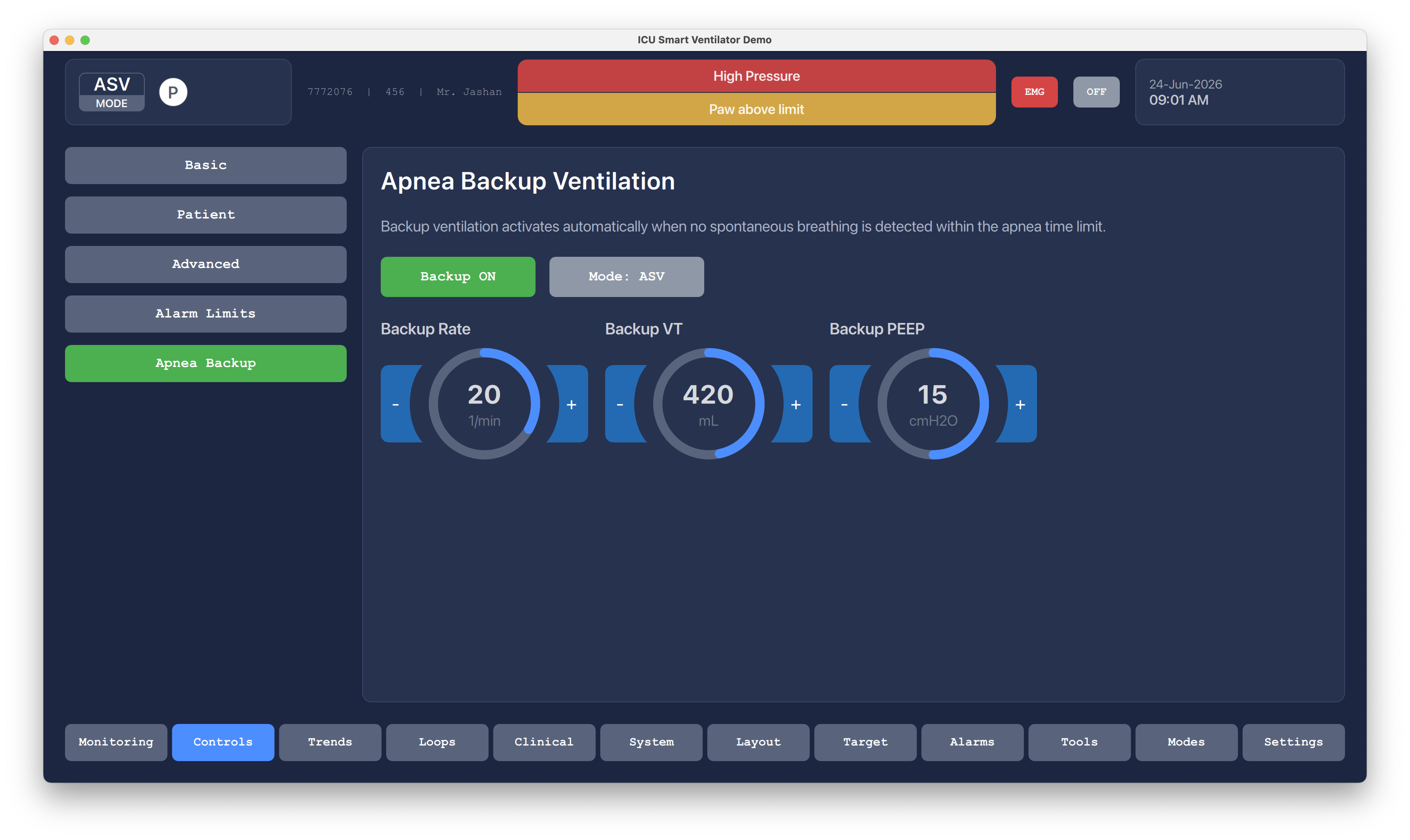
Backup ventilation can be enabled with a selected mode and independent backup rate, tidal volume, and PEEP values for loss of spontaneous breathing.
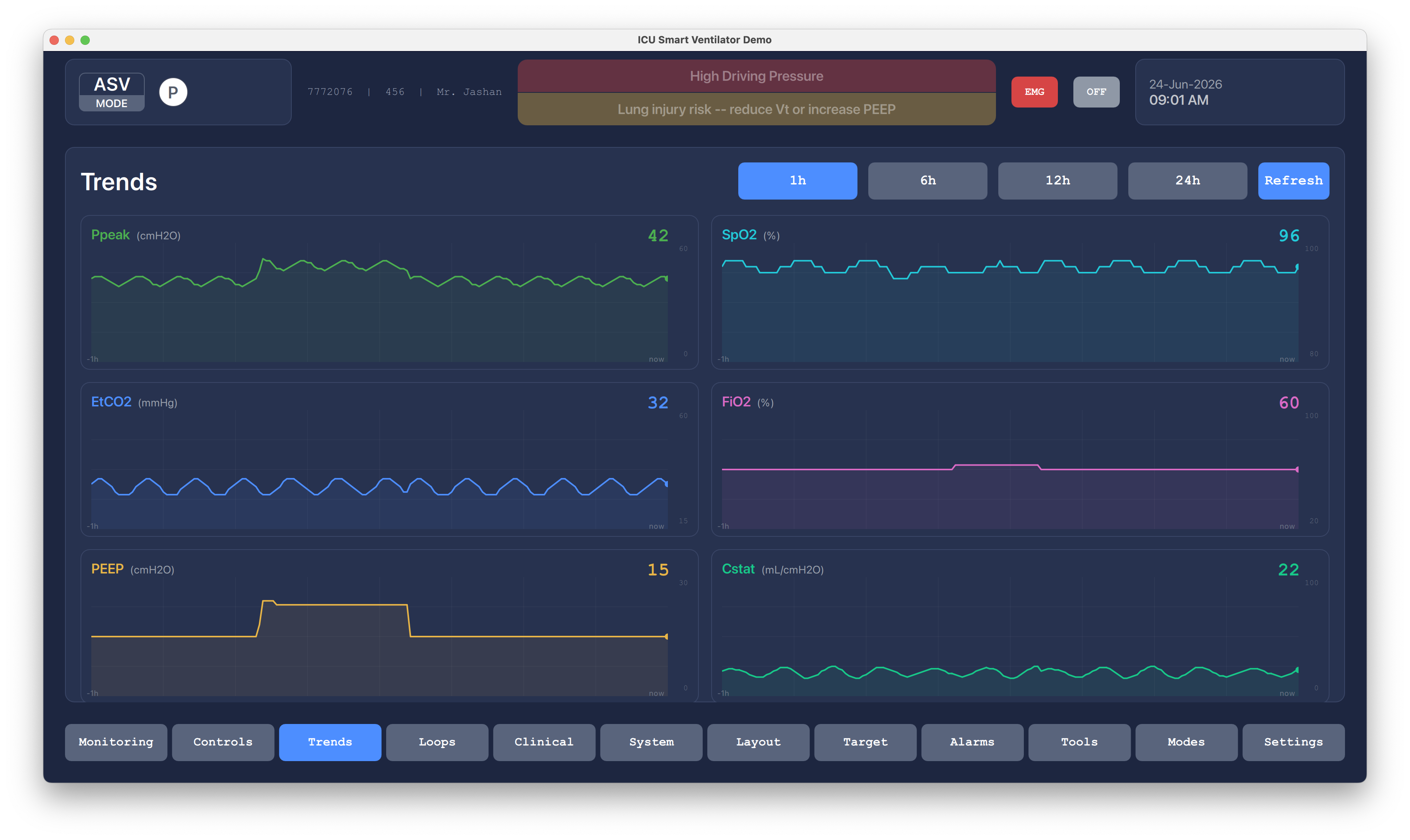
The trends screen gives clinicians a compact one-hour view of Ppeak, SpO2, EtCO2, FiO2, PEEP, and static compliance.
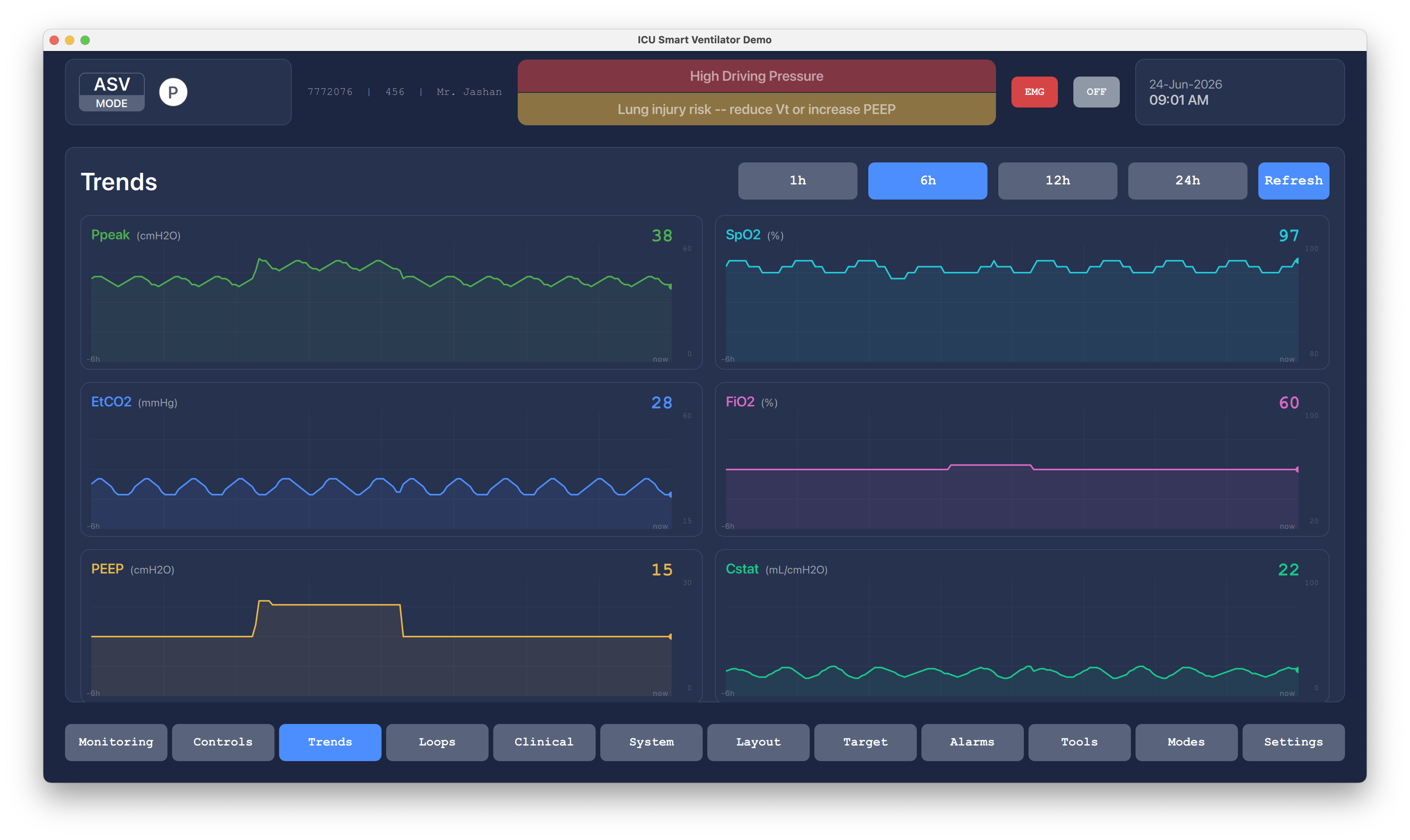
The same trend layout scales to six hours, helping operators compare recent therapy changes against pressure, oxygenation, and compliance movement.
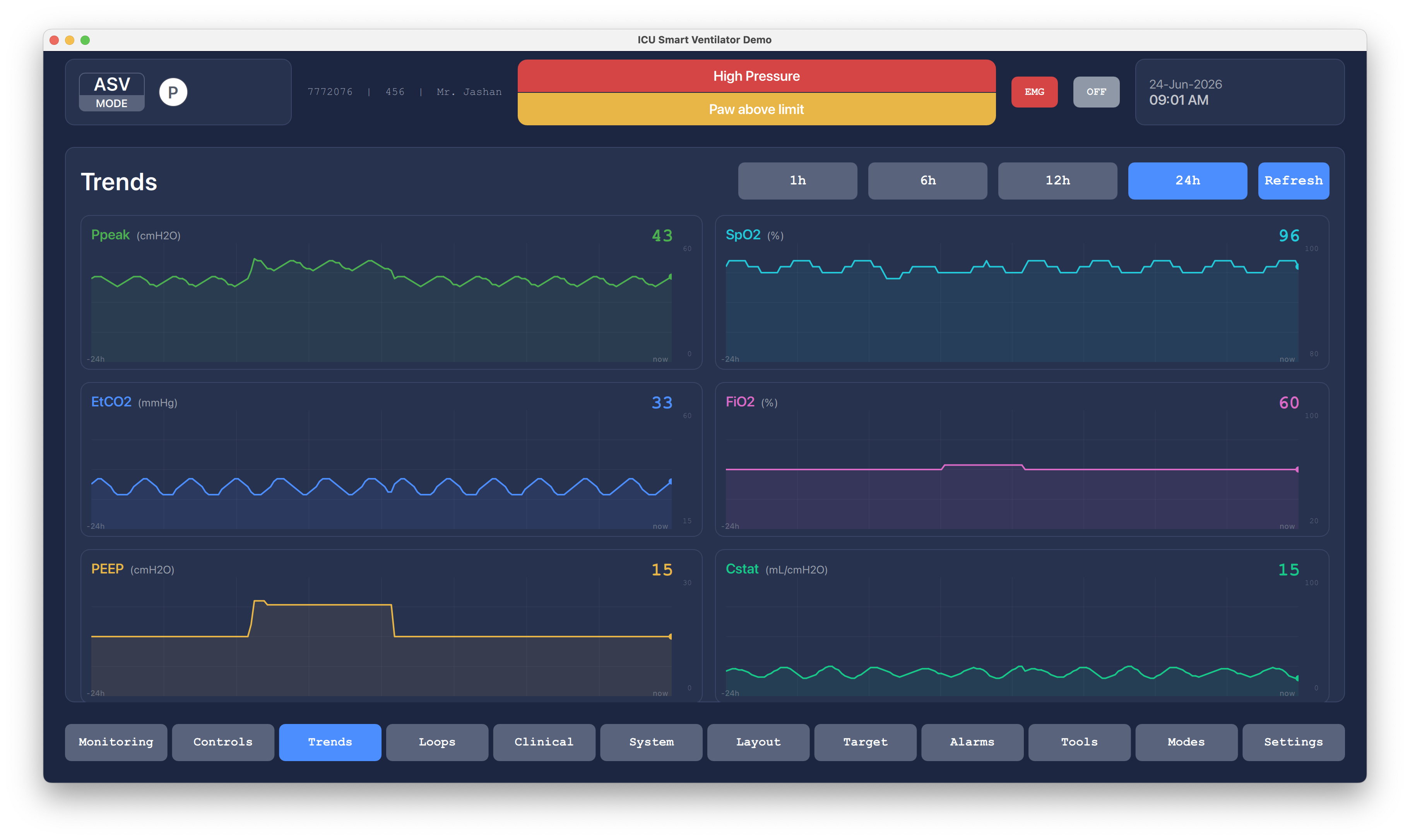
A longer 24-hour window supports handover and retrospective review without hiding the latest value for each metric.
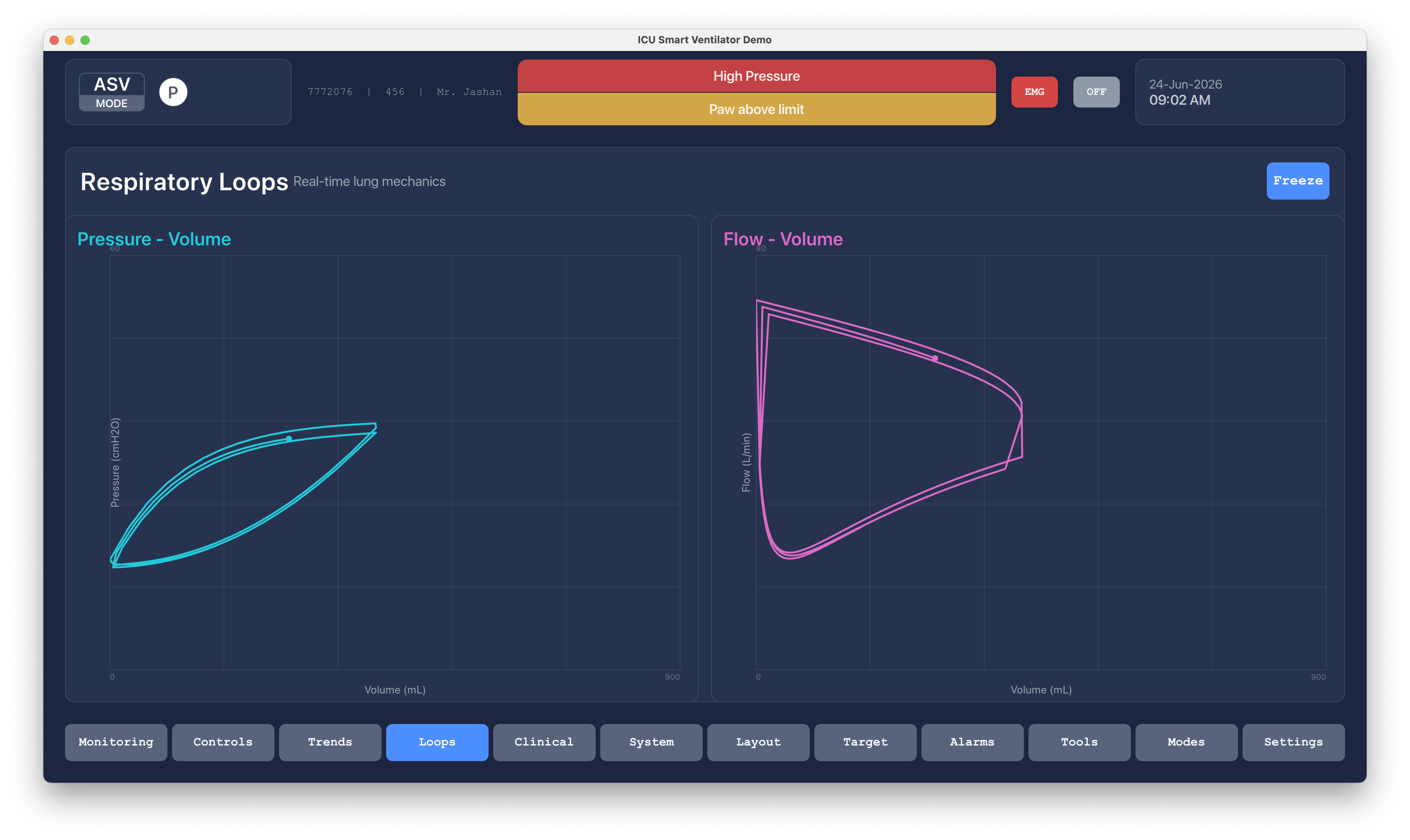
Pressure-volume and flow-volume loops make lung mechanics visible in real time, with a freeze action for closer review.
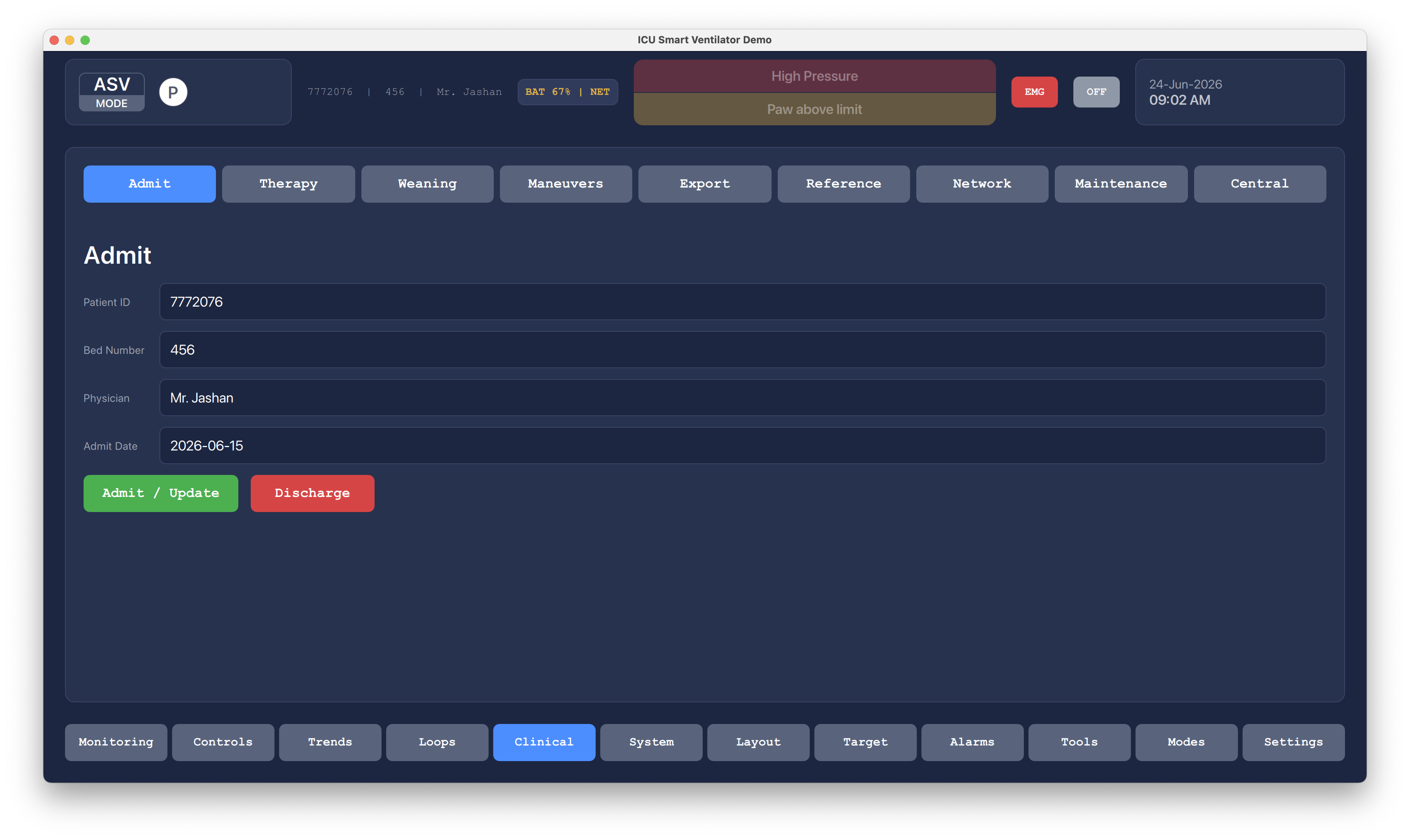
The clinical admission screen captures patient ID, bed number, physician, and admission date, with clear update and discharge actions.
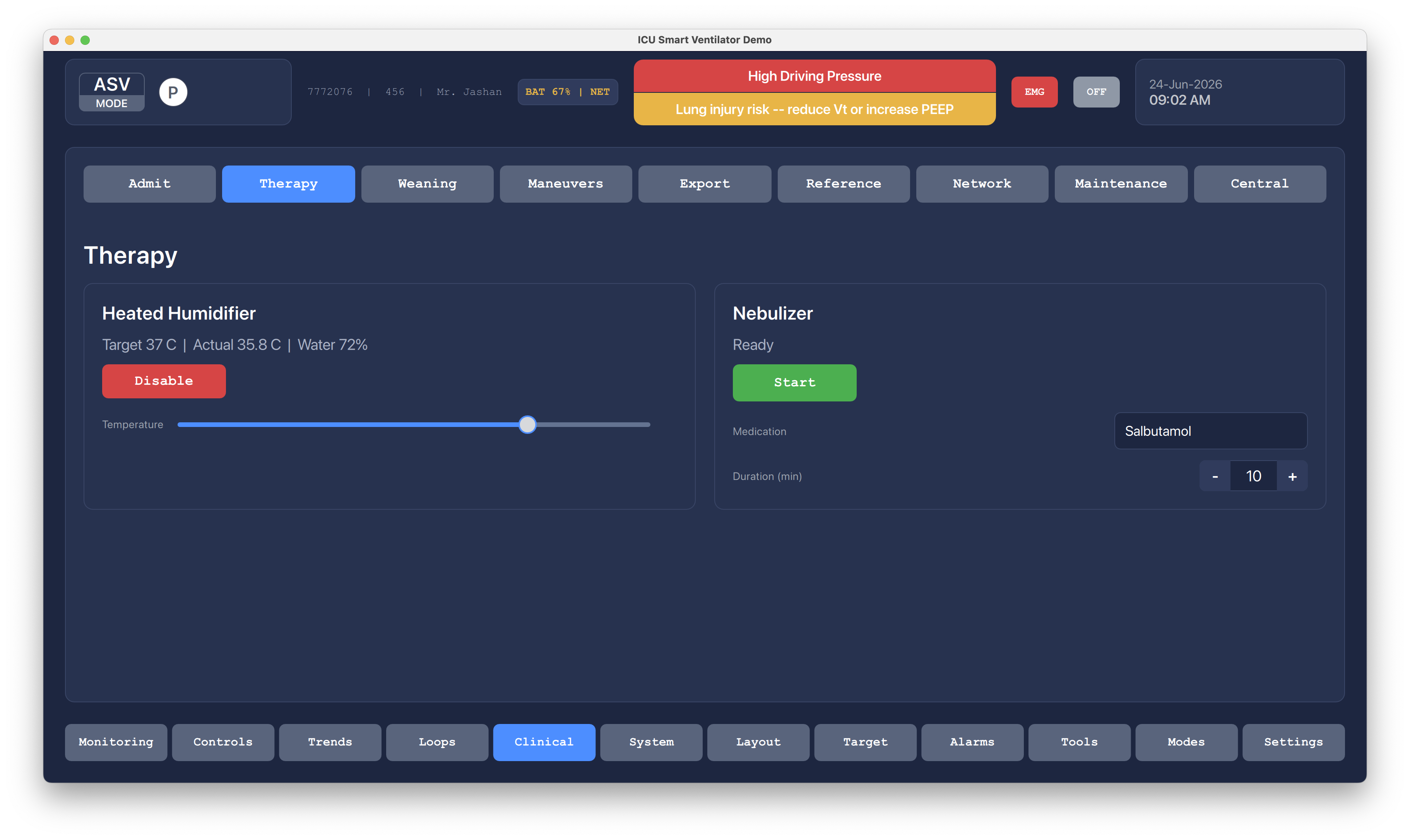
Therapy controls manage the heated humidifier and nebulizer, including target and actual humidifier temperature, water level, medication, and duration.
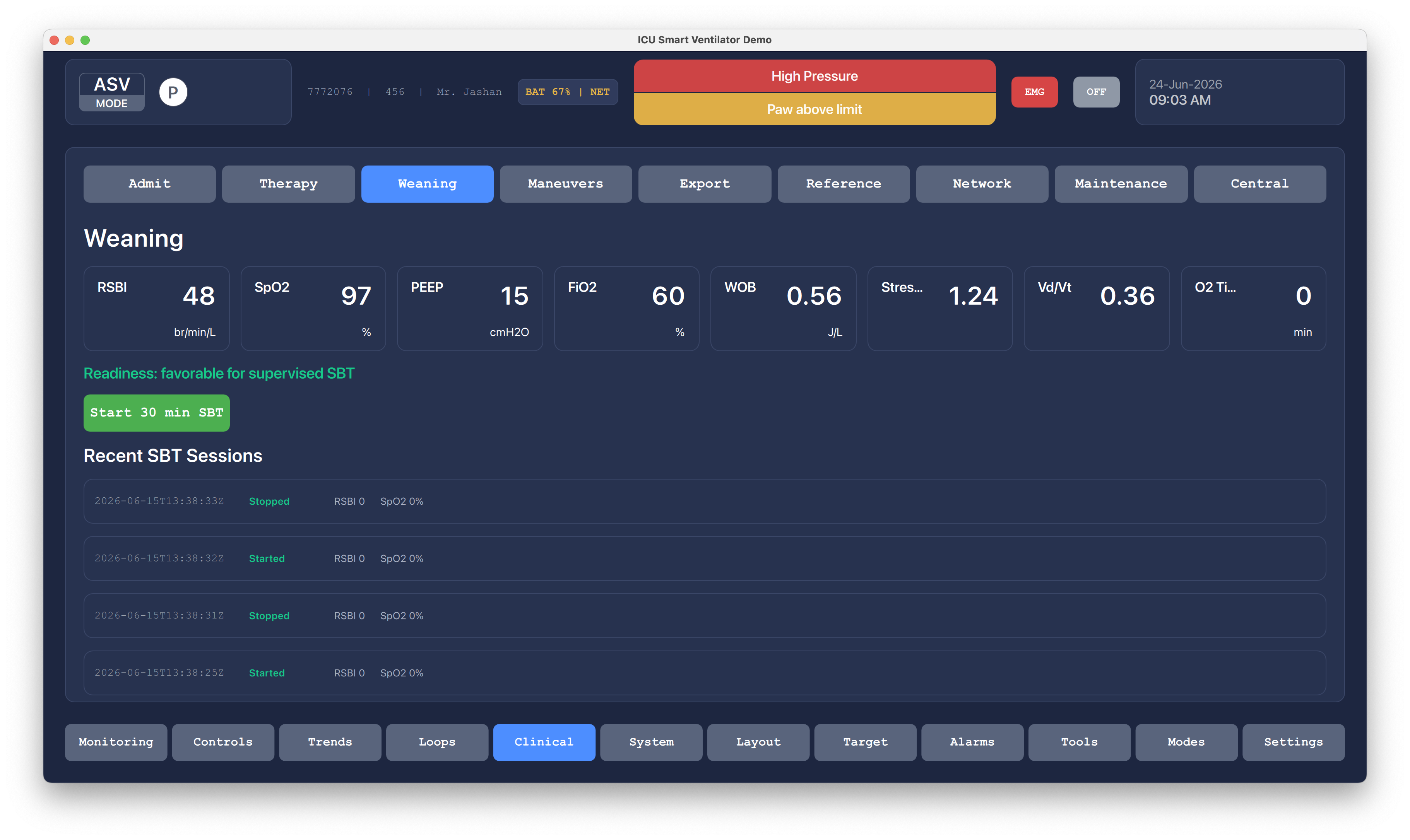
The weaning screen summarizes RSBI, SpO2, PEEP, FiO2, work of breathing, stress index, dead-space ratio, and oxygen time before starting a supervised breathing trial.
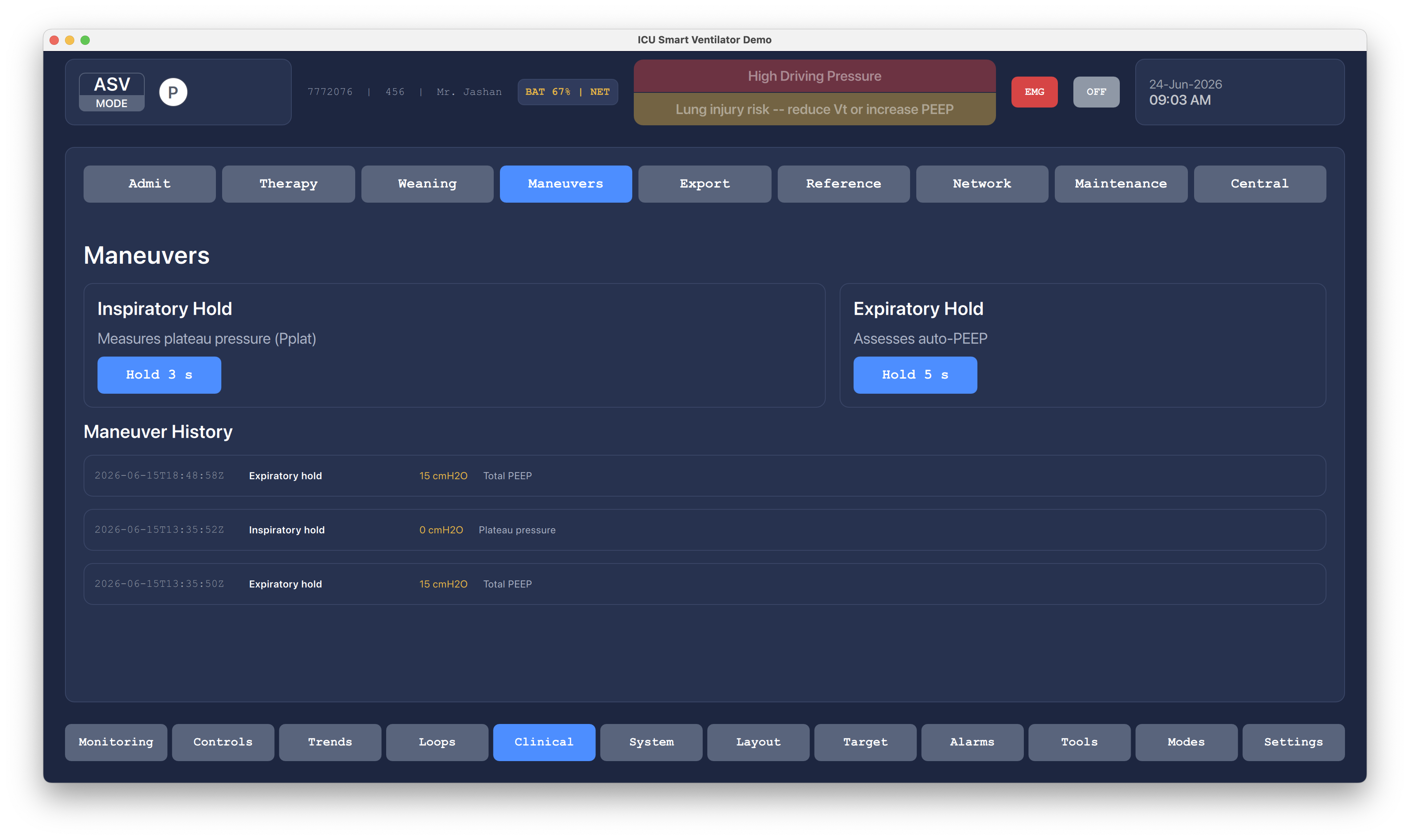
Inspiratory and expiratory hold actions are presented with history rows so plateau pressure and auto-PEEP checks are traceable.
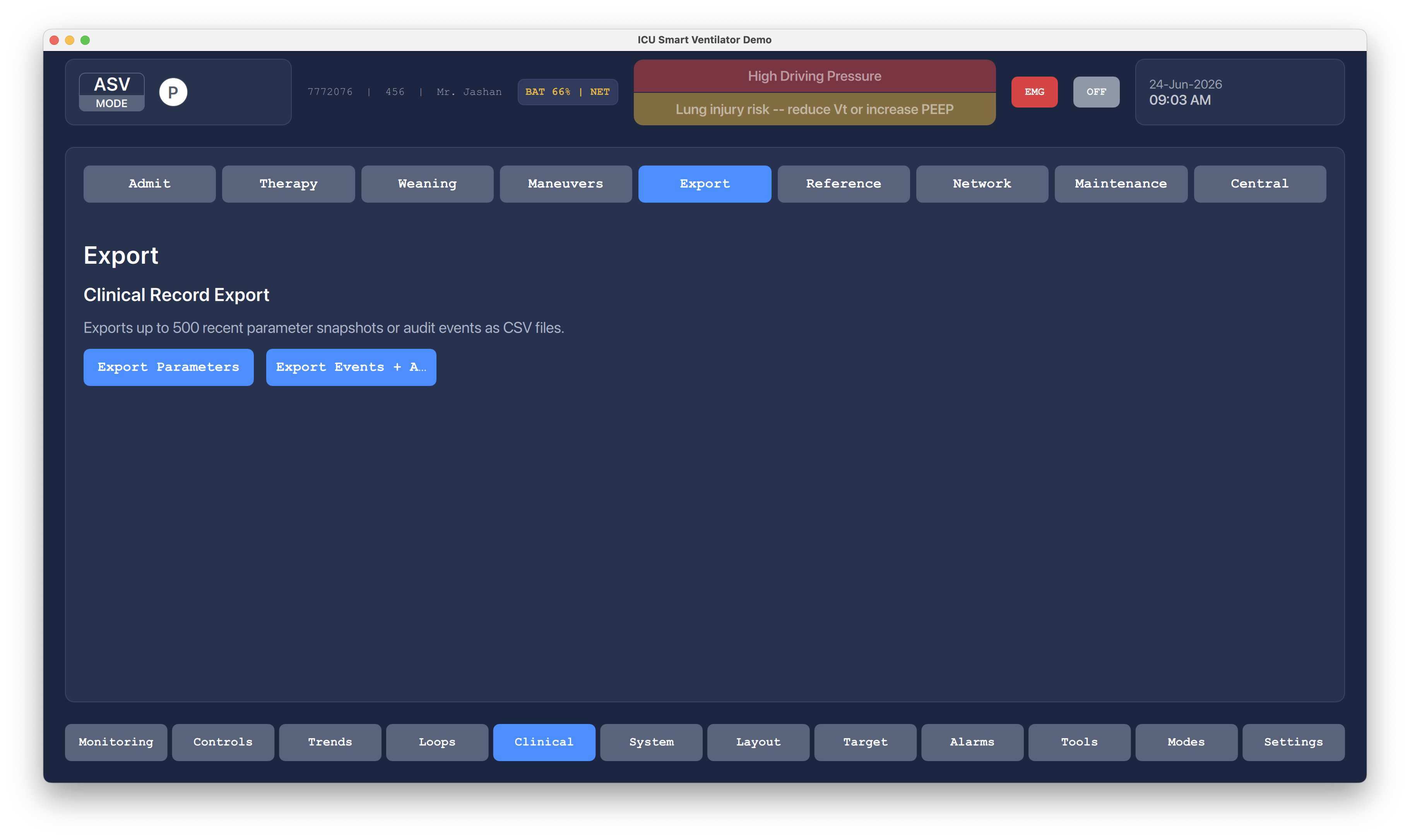
Clinical records can be exported as parameter snapshots or audit events, supporting handover, service review, and offline reporting.
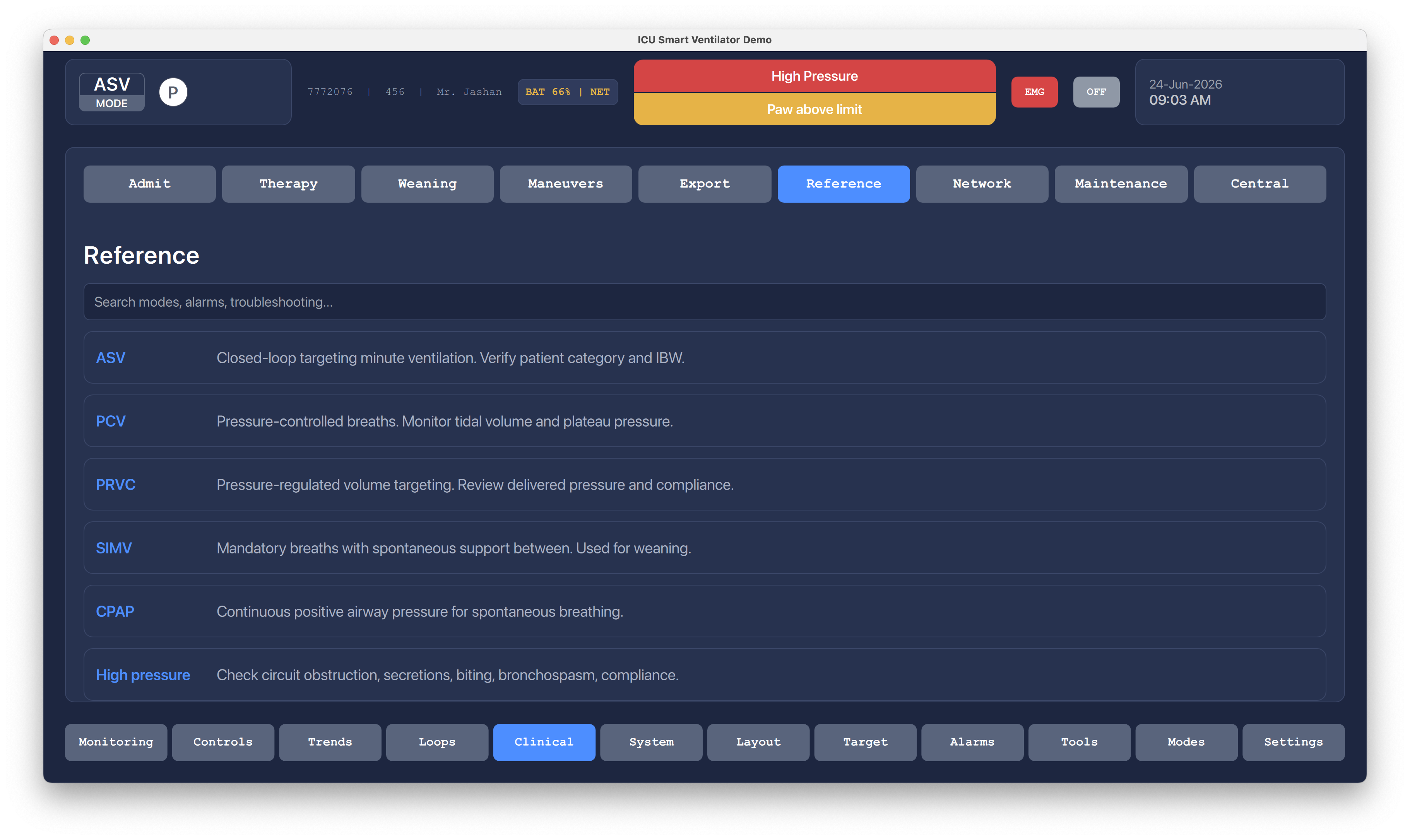
A reference section keeps common ventilation ranges and clinical context near the operator workflow instead of sending staff outside the console.
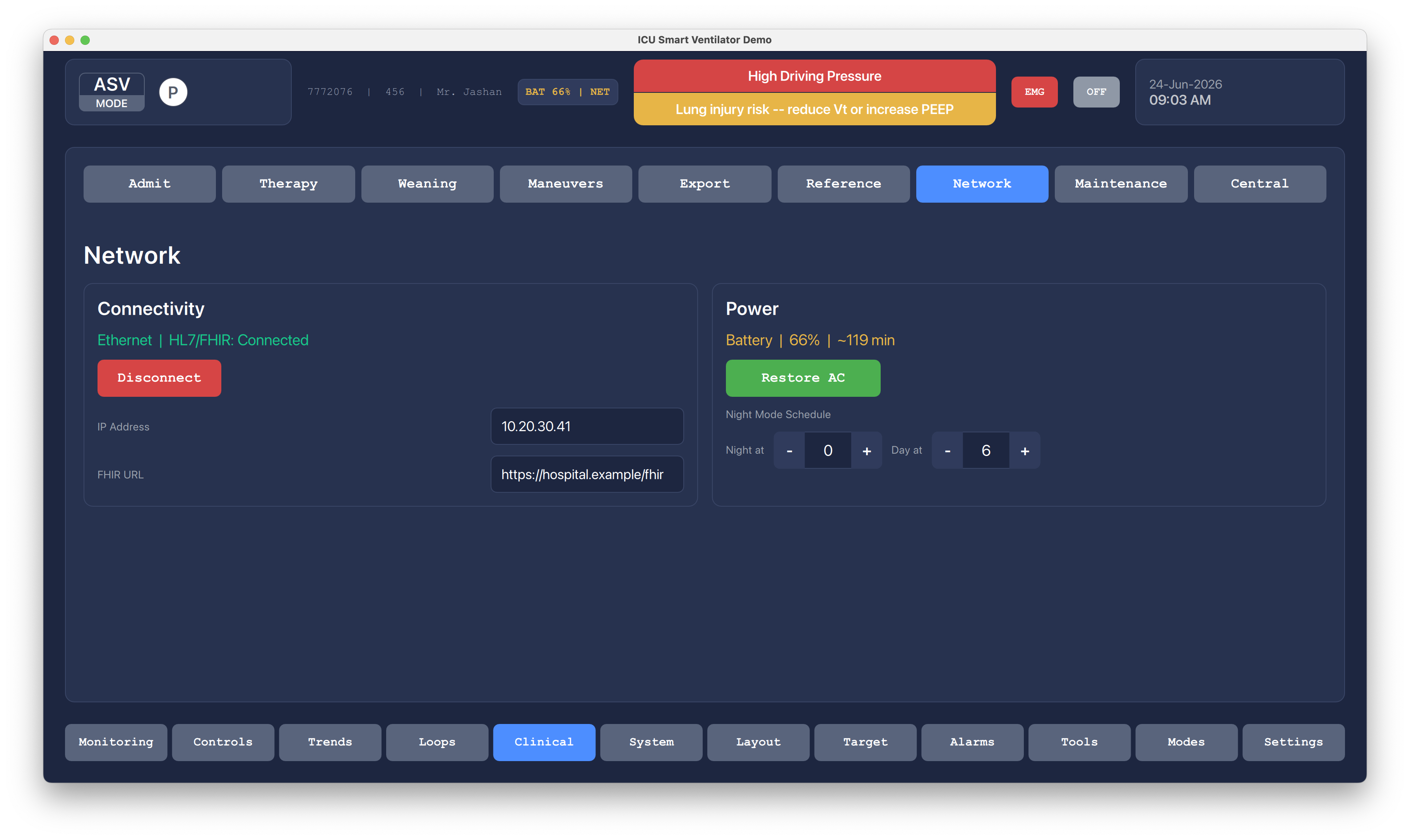
The network screen separates connectivity state from bedside controls, making it easier to review device communication without affecting ventilation settings.
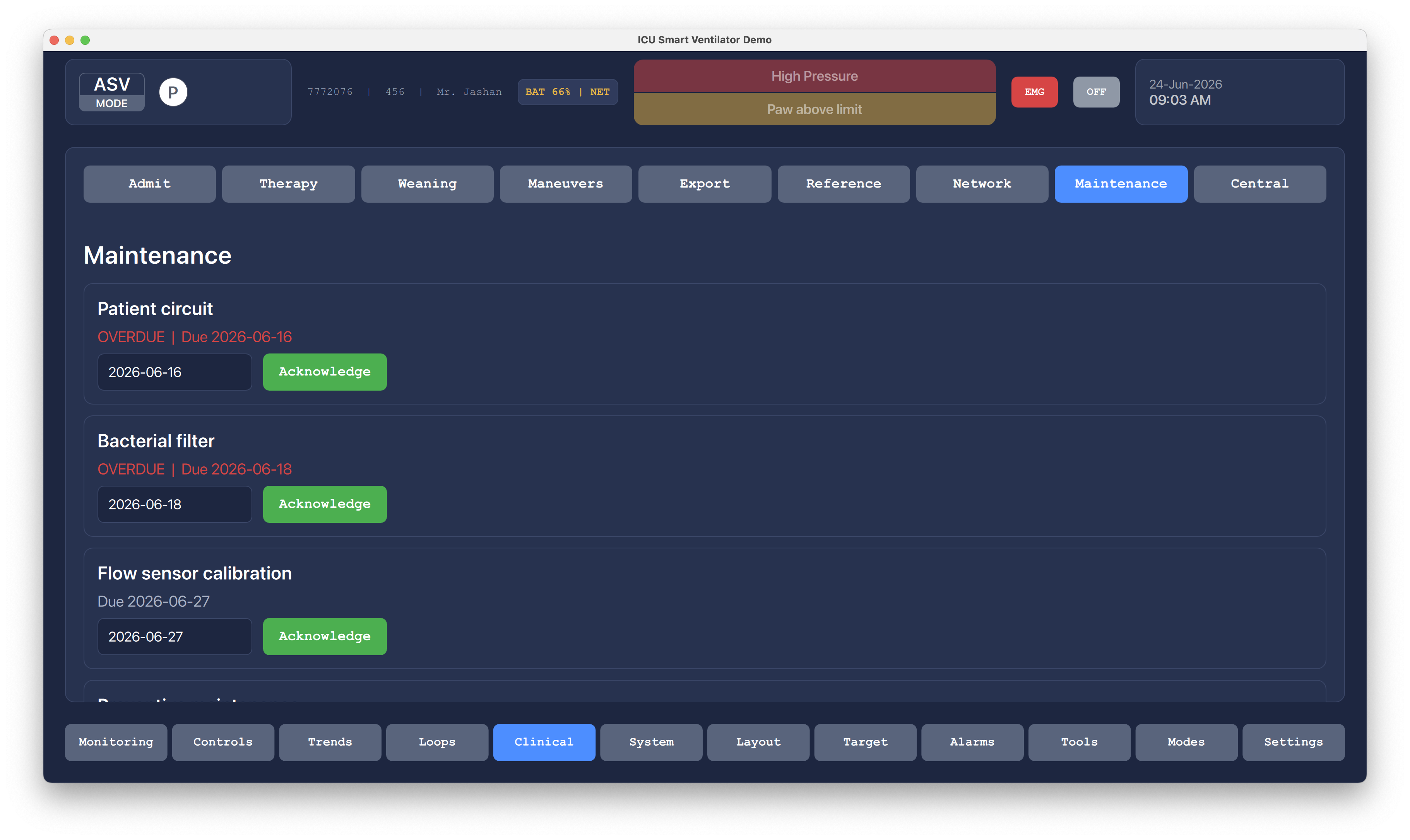
Maintenance screens collect device health, service access, and technical checks away from day-to-day clinical operation.
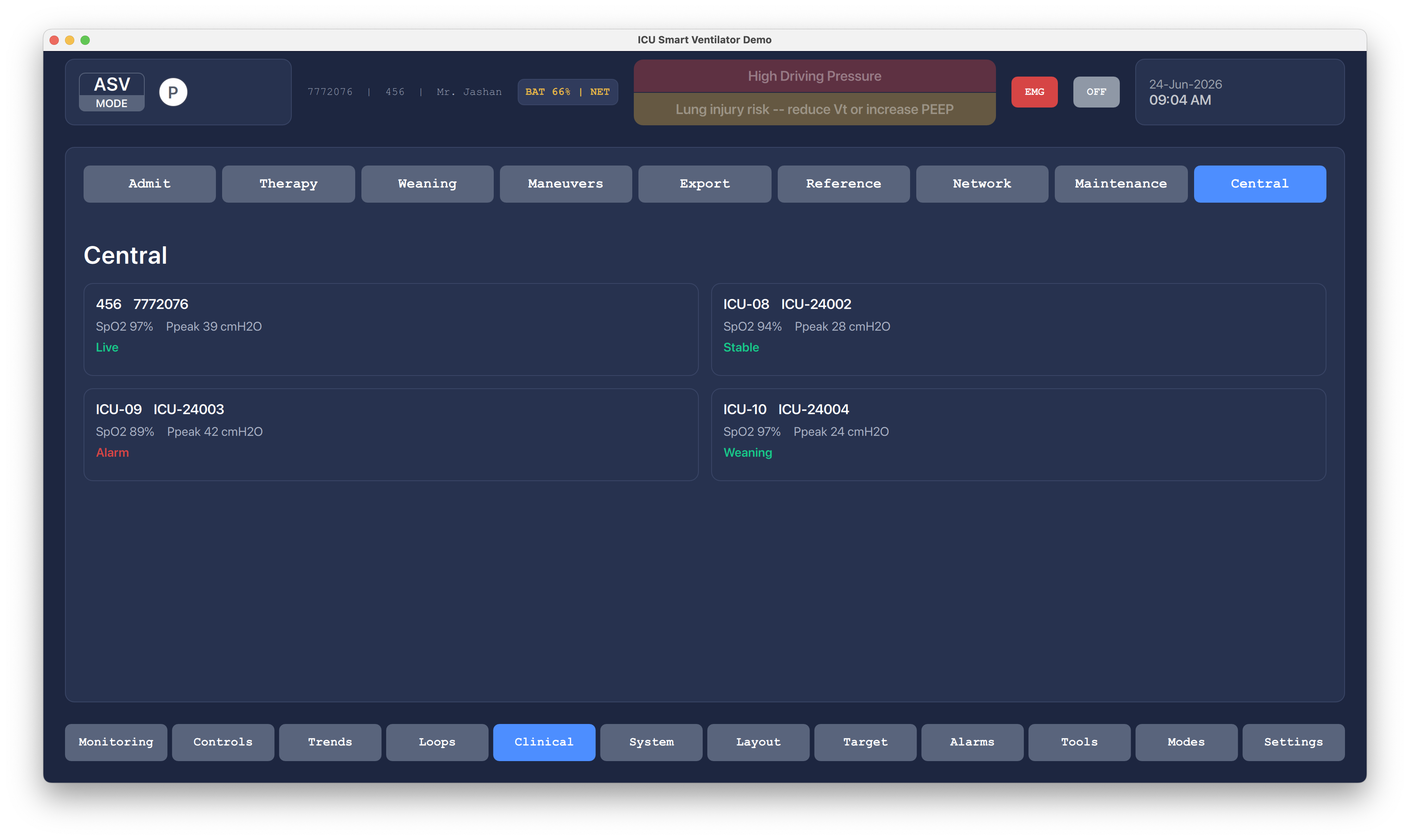
Central monitoring supports a larger-care workflow where device state and patient data need to be visible beyond one local bedside screen.
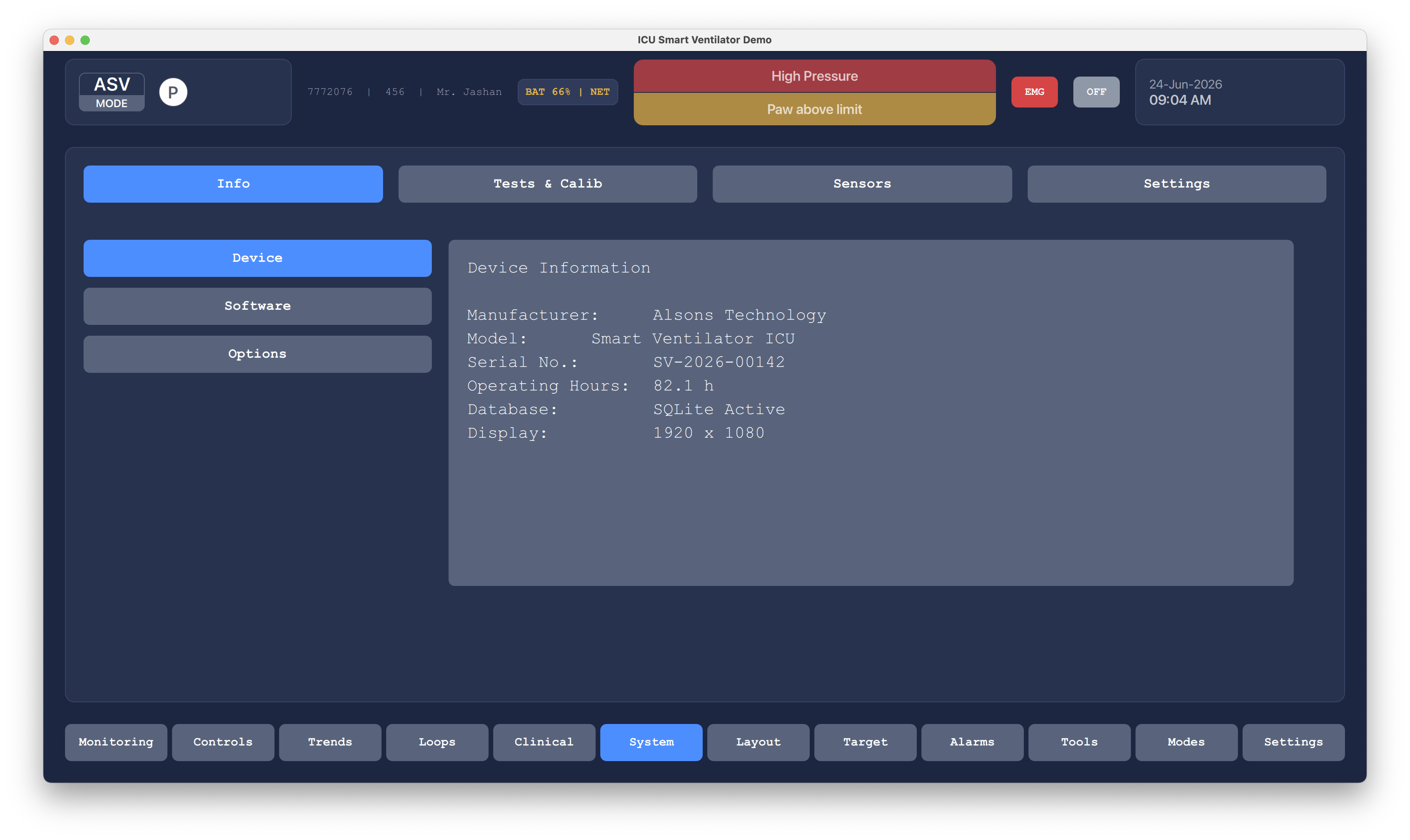
The system area reports power, battery, network, and runtime state so operators can quickly confirm whether the device is ready for continuous use.
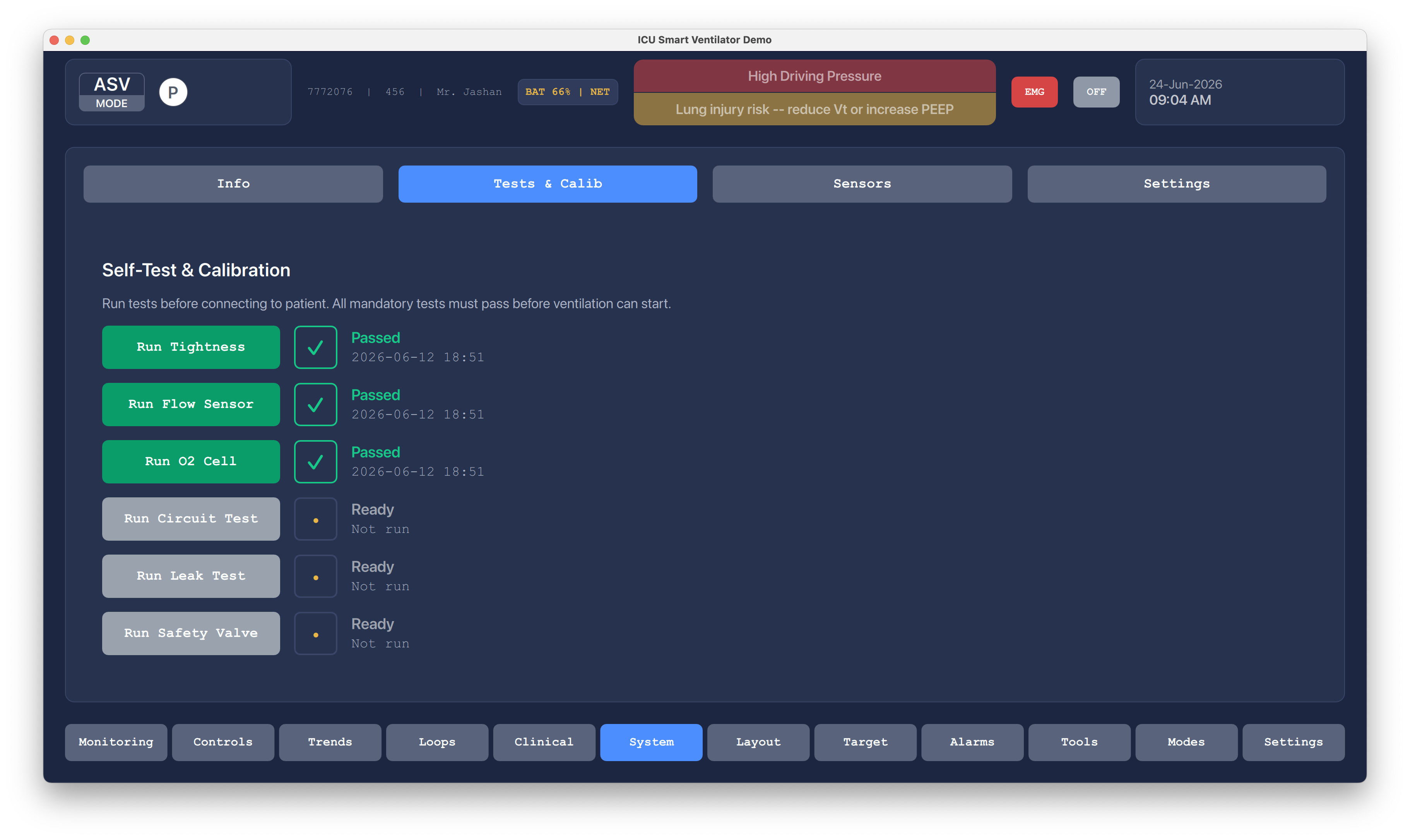
Battery percentage and network indicators remain visible in system views, making infrastructure issues easier to notice before they become urgent.
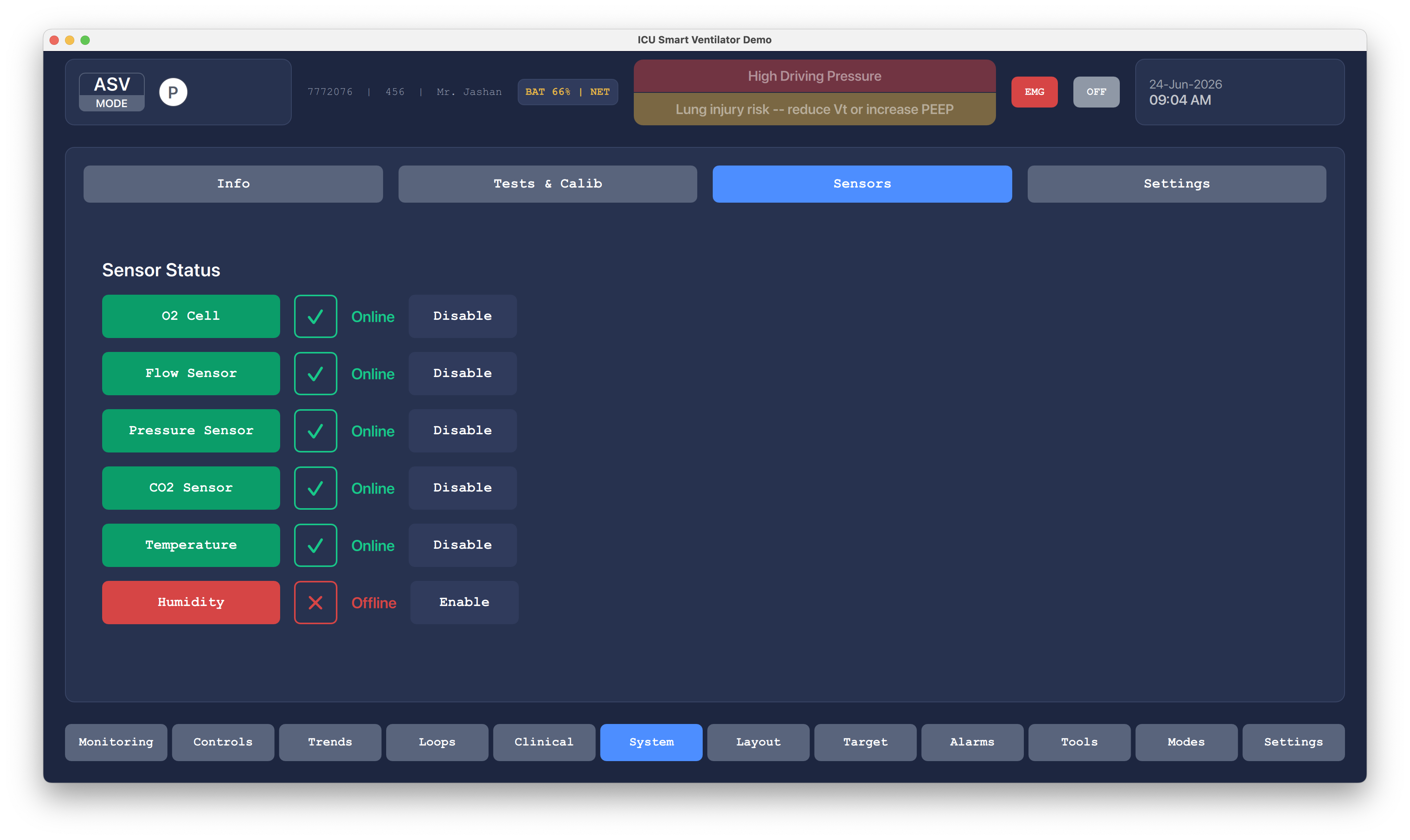
The layout section lets the interface adapt to the operator's preferred monitoring arrangement while keeping the same bottom navigation model.
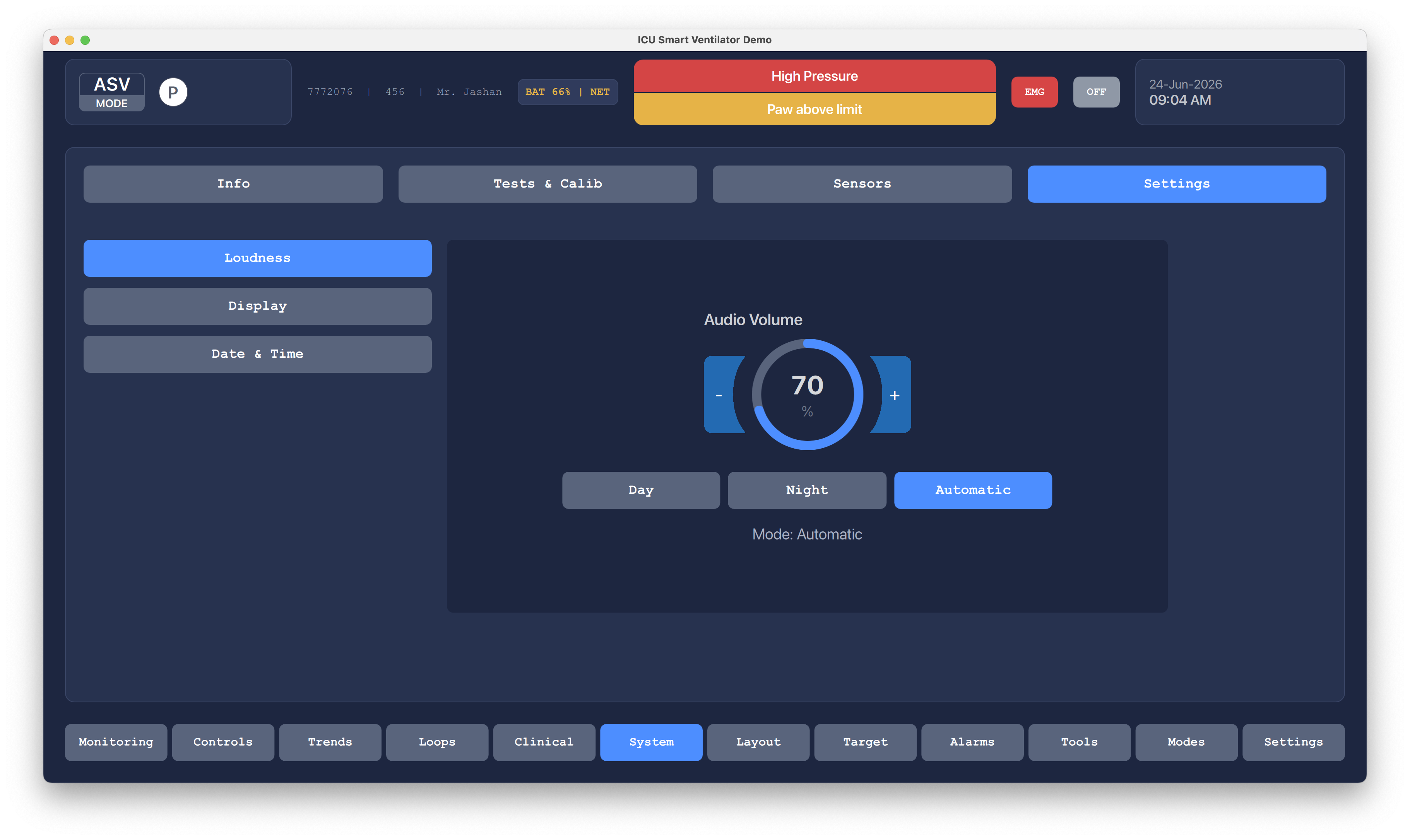
Target settings centralize goal-based values so assisted ventilation can be tuned without jumping between unrelated screens.
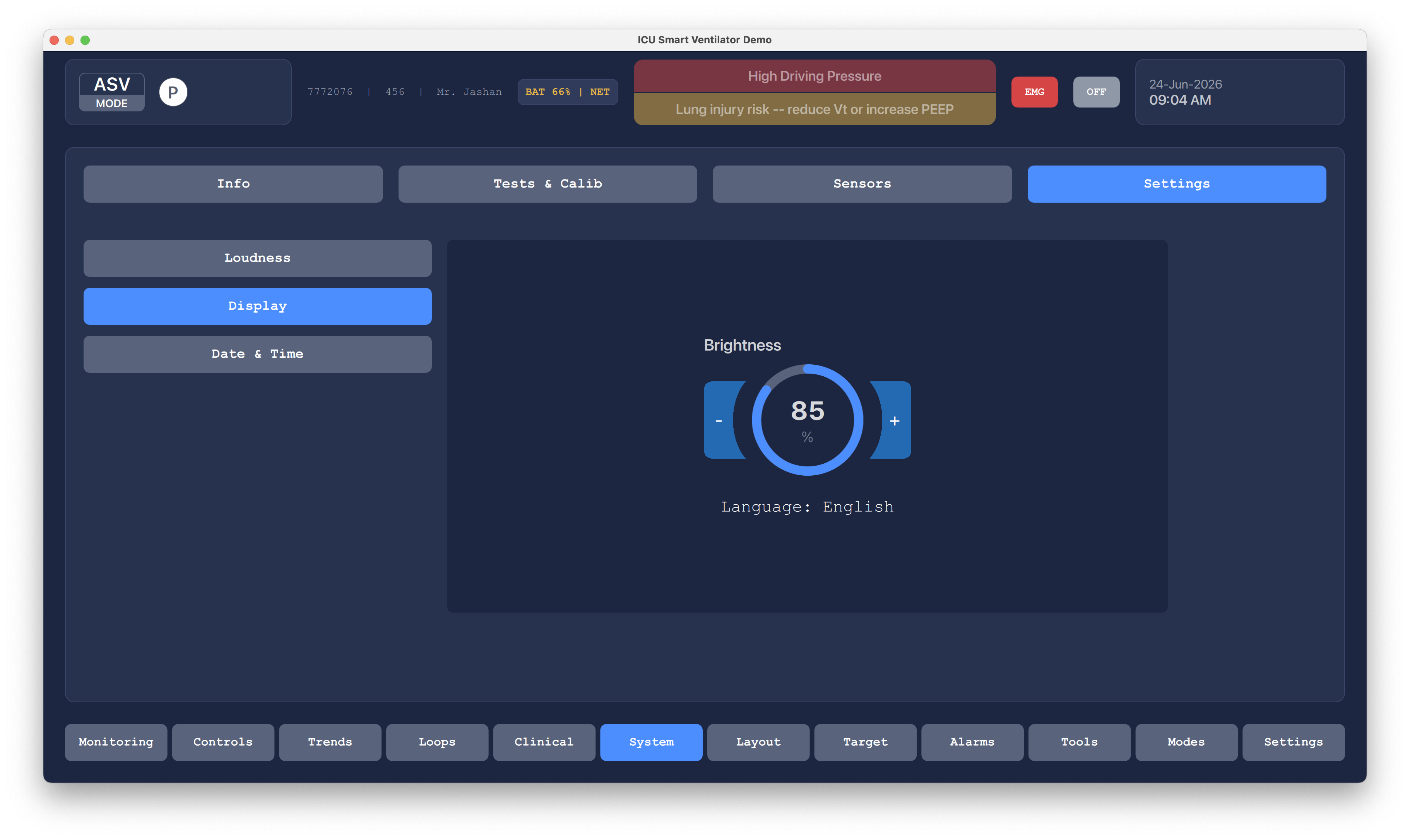
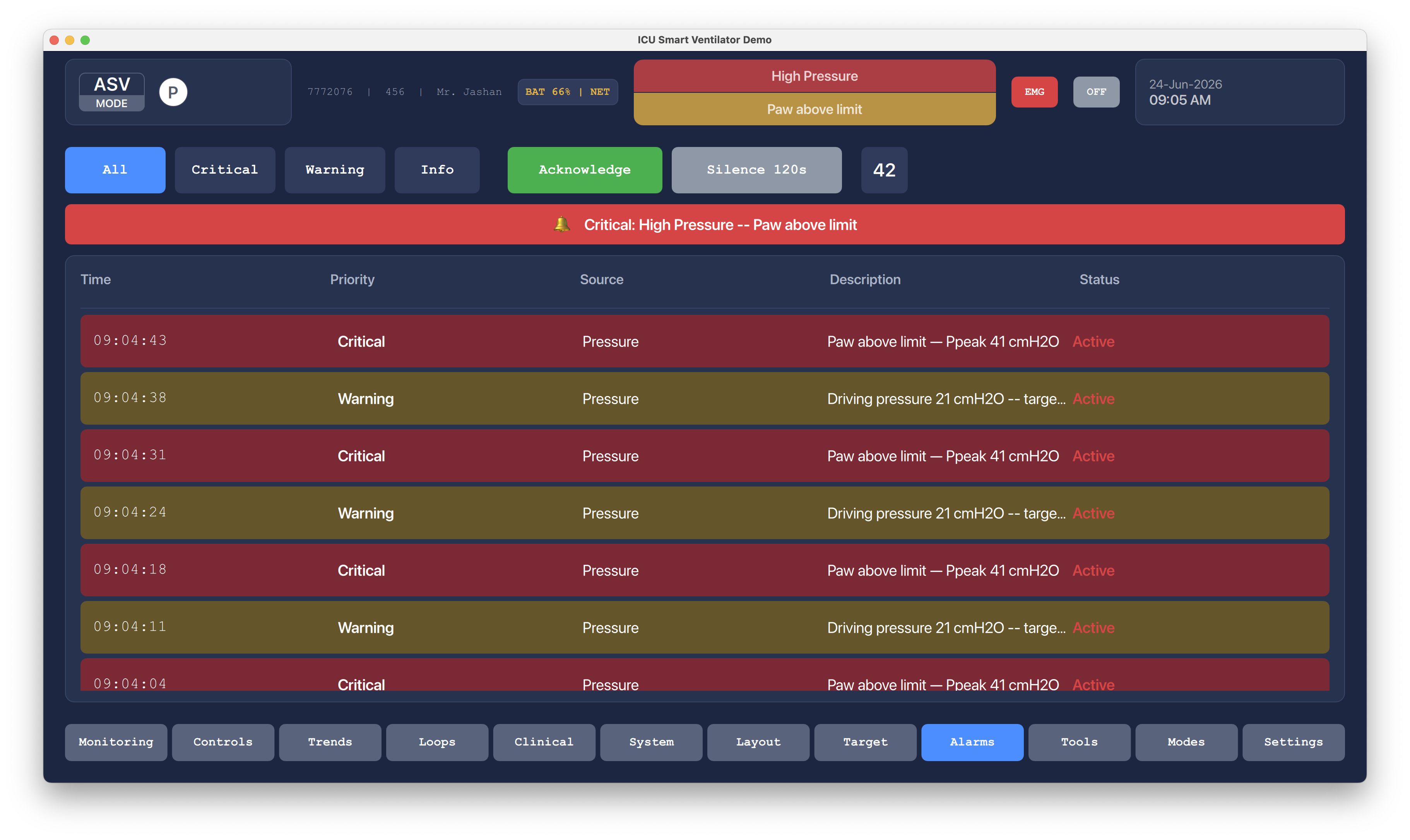
Alarm history gives staff a readable list of recent events, helping them understand what happened before the current patient state.
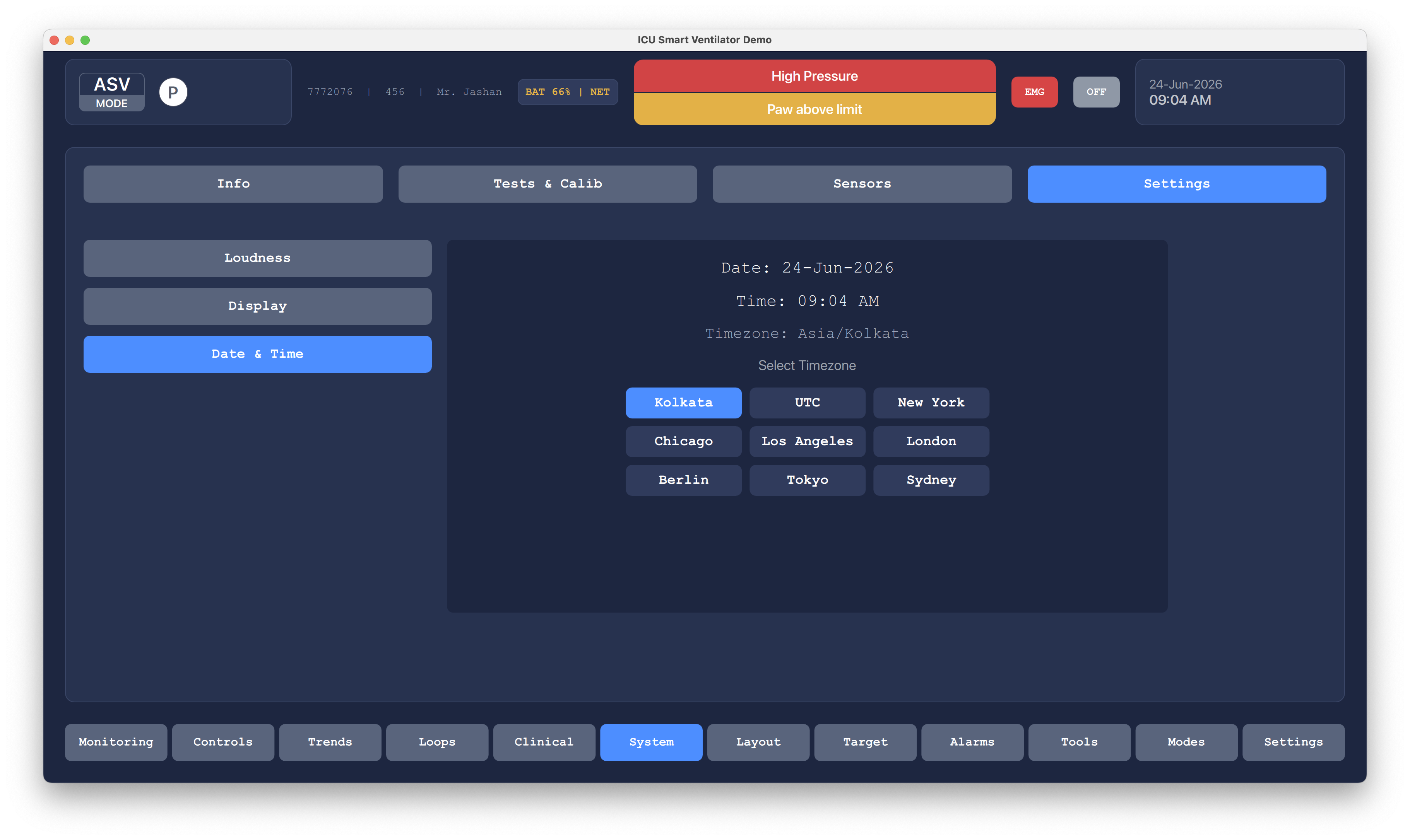
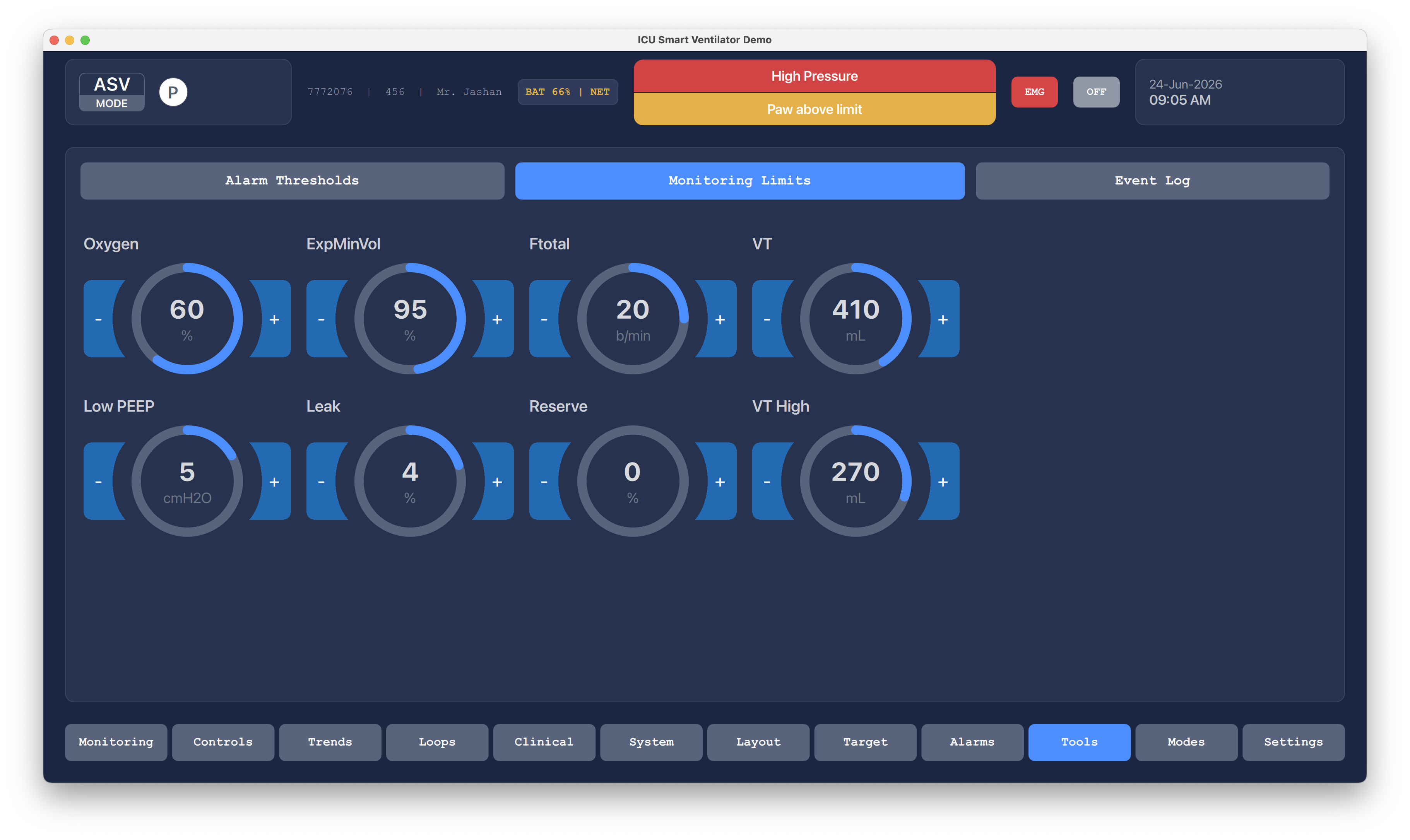
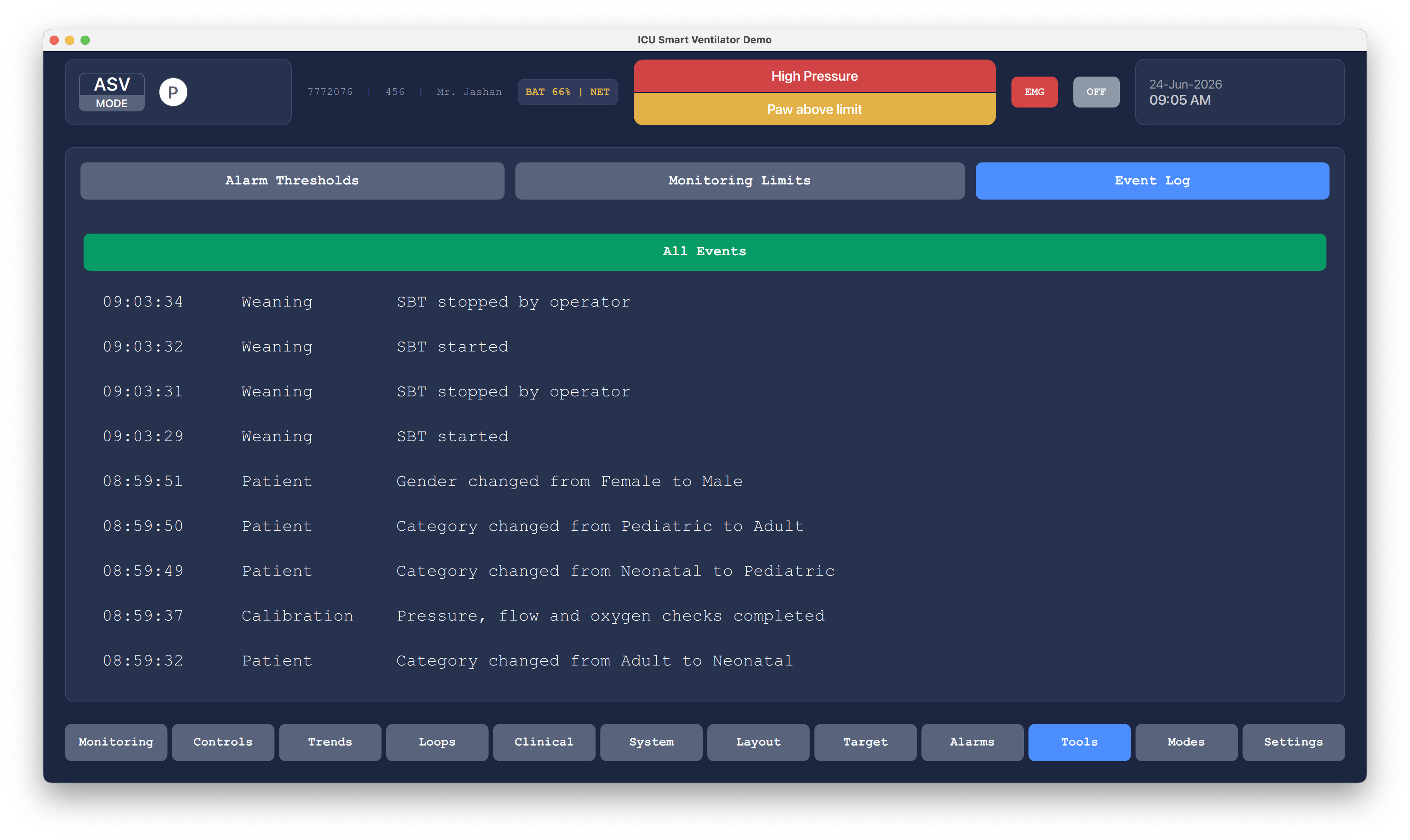
The tools area groups device actions that are useful during setup, checks, and troubleshooting while keeping them separate from normal monitoring.
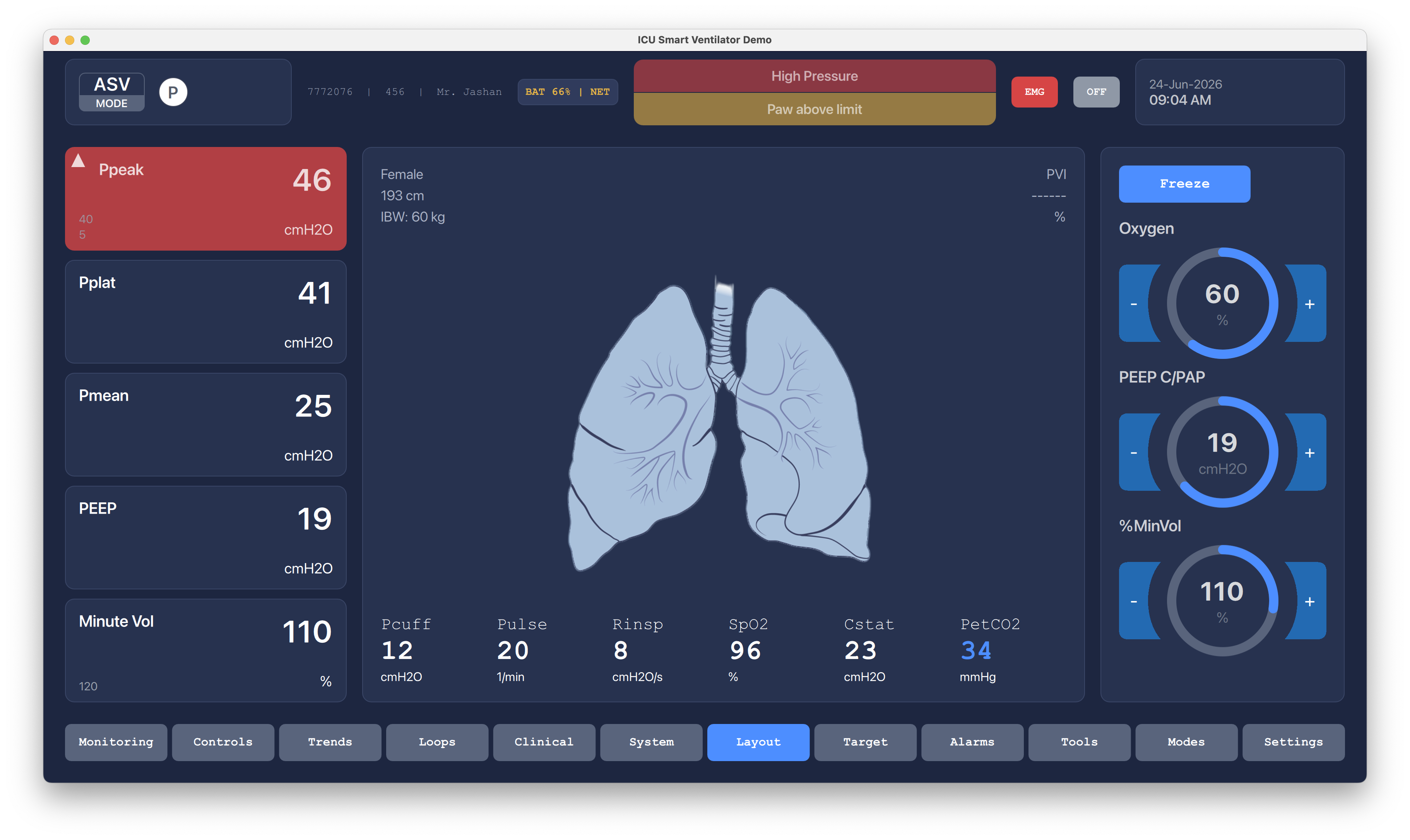
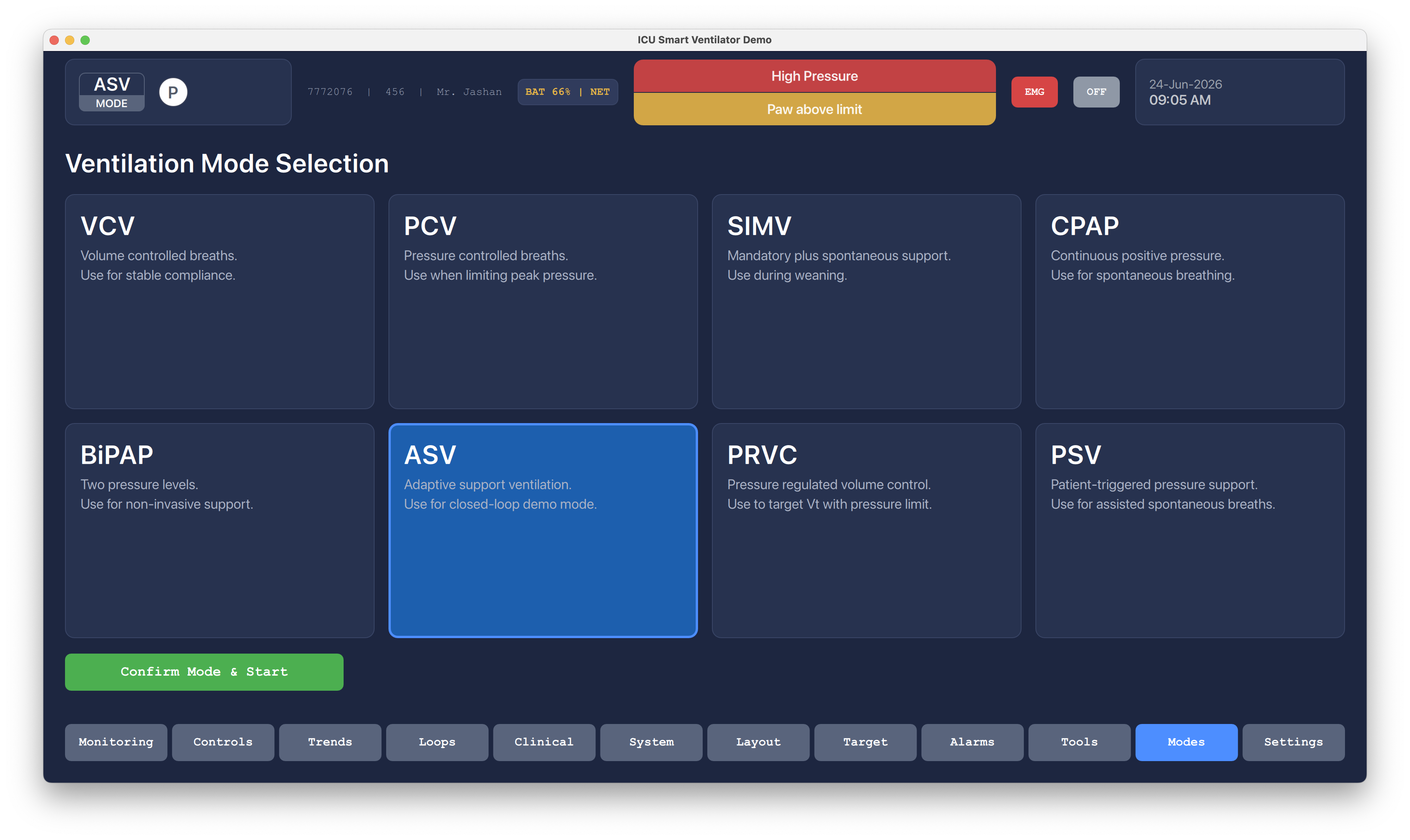
The modes screen supports selection and review of ventilation strategies from the same interface shell used during active therapy.
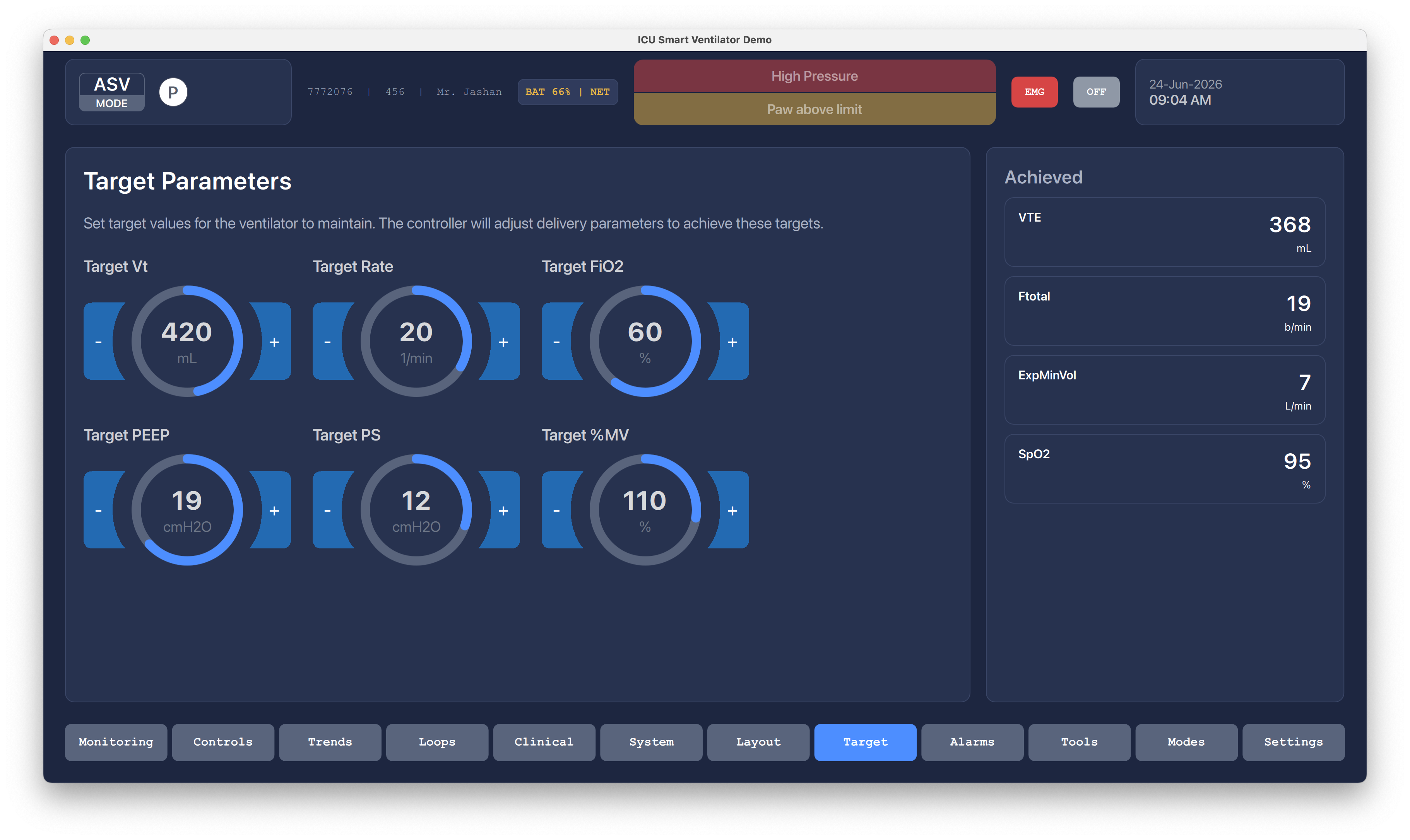
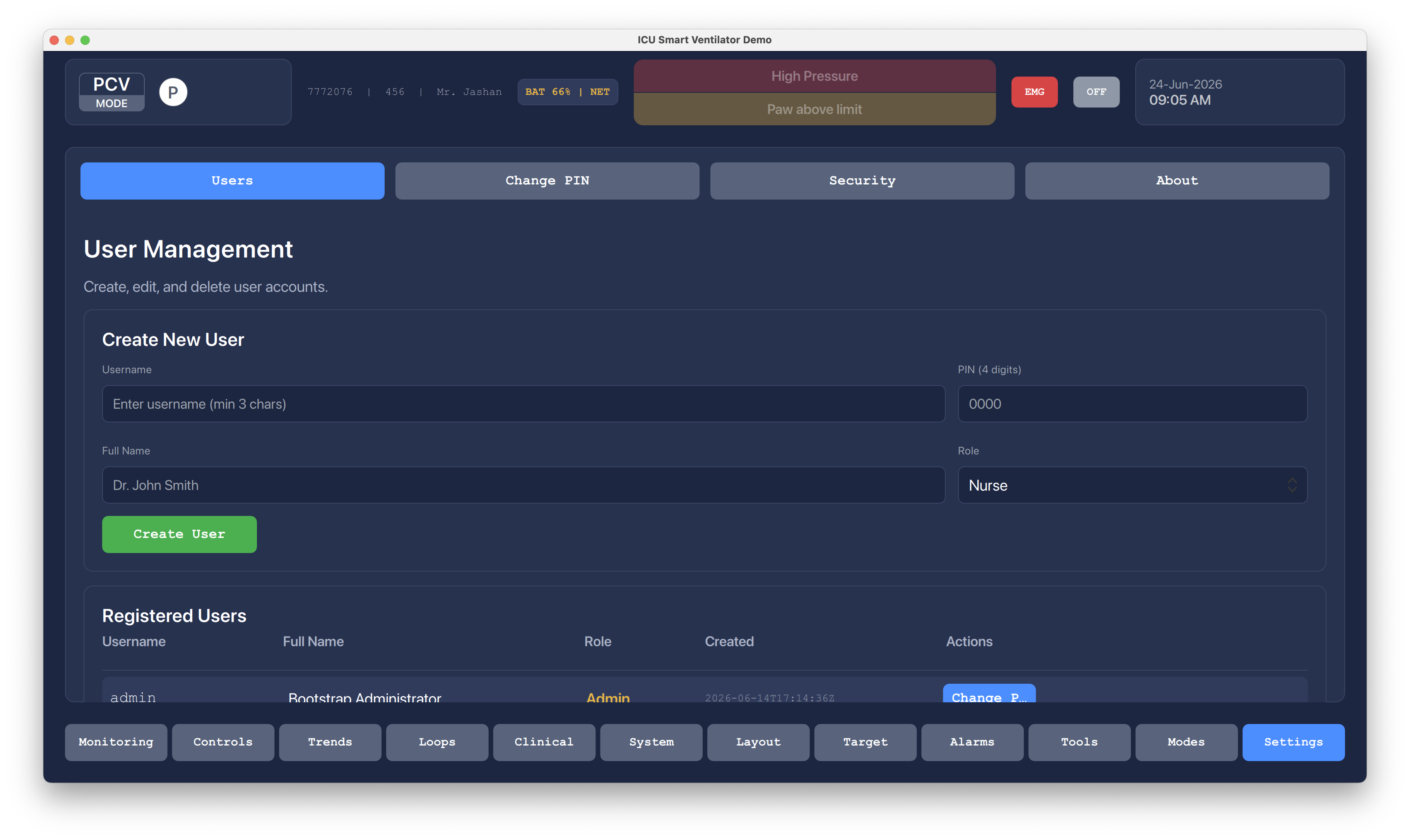
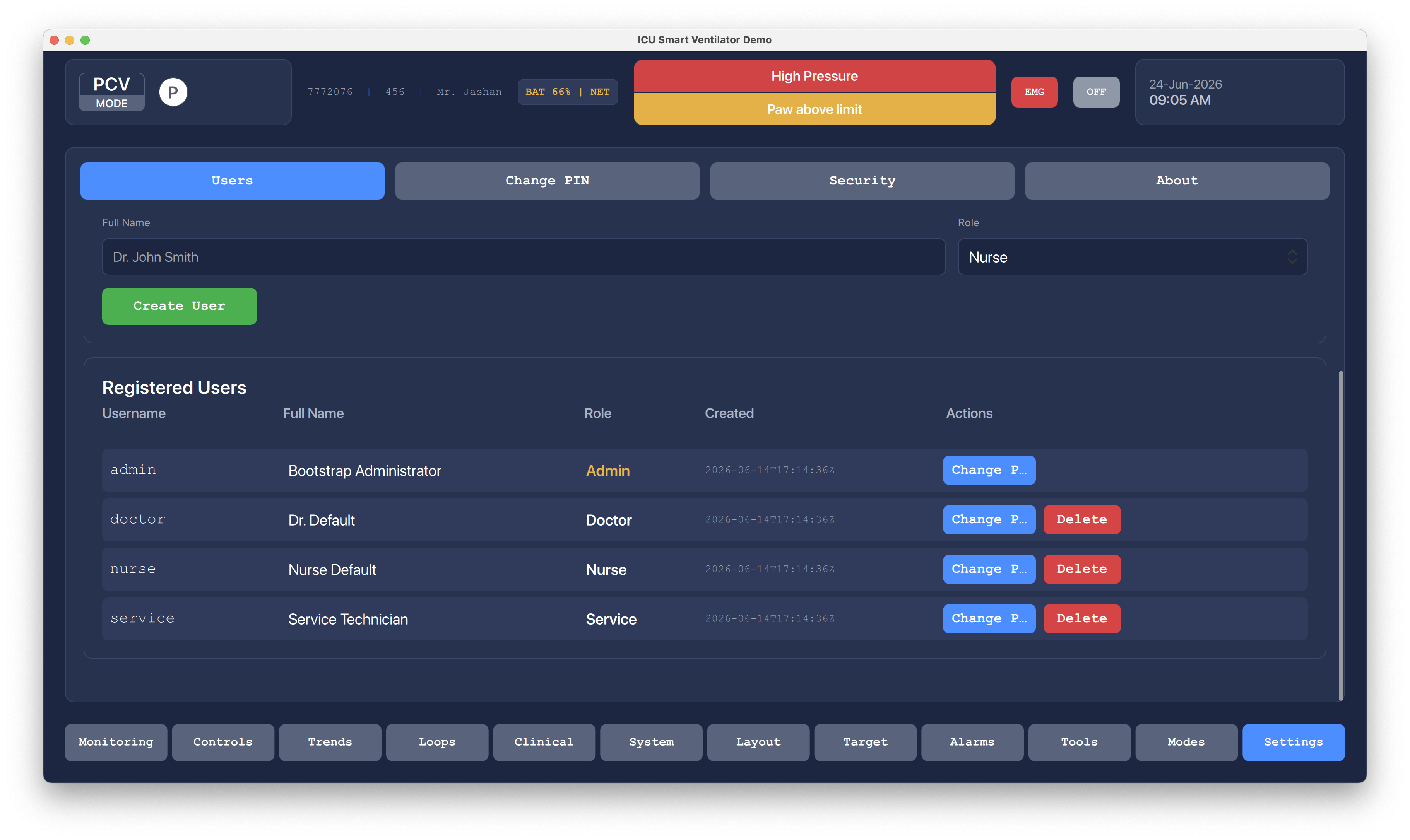
Settings collect operator preferences and device-level configuration in a predictable area away from clinical parameter controls.
Confirmation states protect high-impact mode changes by giving the operator one final review step before applying a new ventilation mode.
The emergency action remains prominent in the top bar, and this screen shows how the interface keeps critical actions reachable during abnormal conditions.
The off control is treated as a deliberate workflow, reducing accidental shutdown risk during a high-attention clinical session.
Freeze mode lets clinicians pause waveforms and inspect pressure, flow, volume, and CO2 behavior without losing the surrounding context.
The resume state returns the operator to live monitoring with the same alarm, values, and quick-control structure intact.
Muted or acknowledged alarm states keep the warning visible while reducing noise, so the team still sees the active risk condition.
Adult, pediatric, and neonatal choices are presented as clear segmented actions so the UI can adapt suggested values to the patient group.
The test and calibration entry point keeps setup checks close to standby operation, which is where staff need them before ventilation begins.
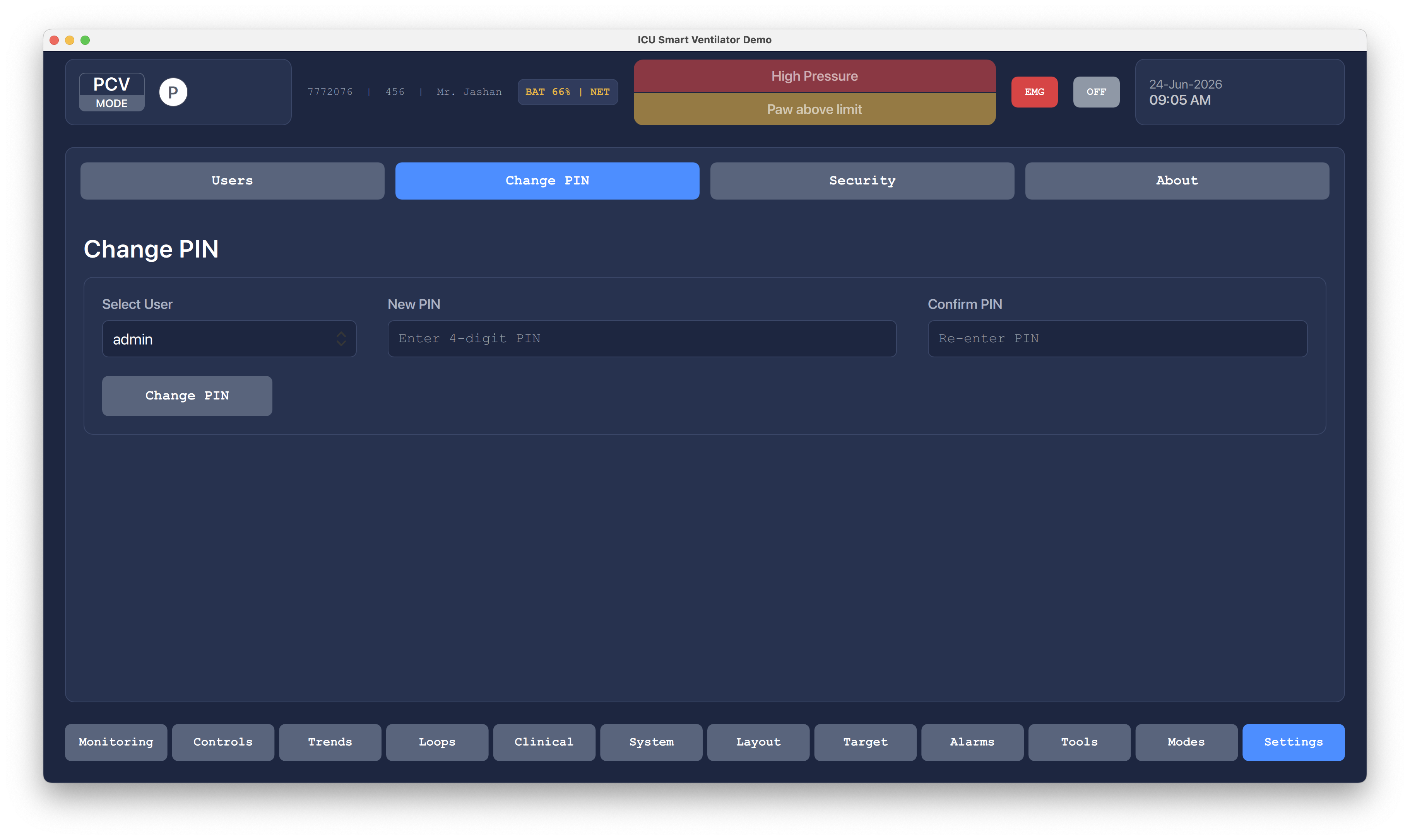
Auto-calculated values are shown before continuing to modes, giving operators a chance to review how patient inputs affect starting settings.
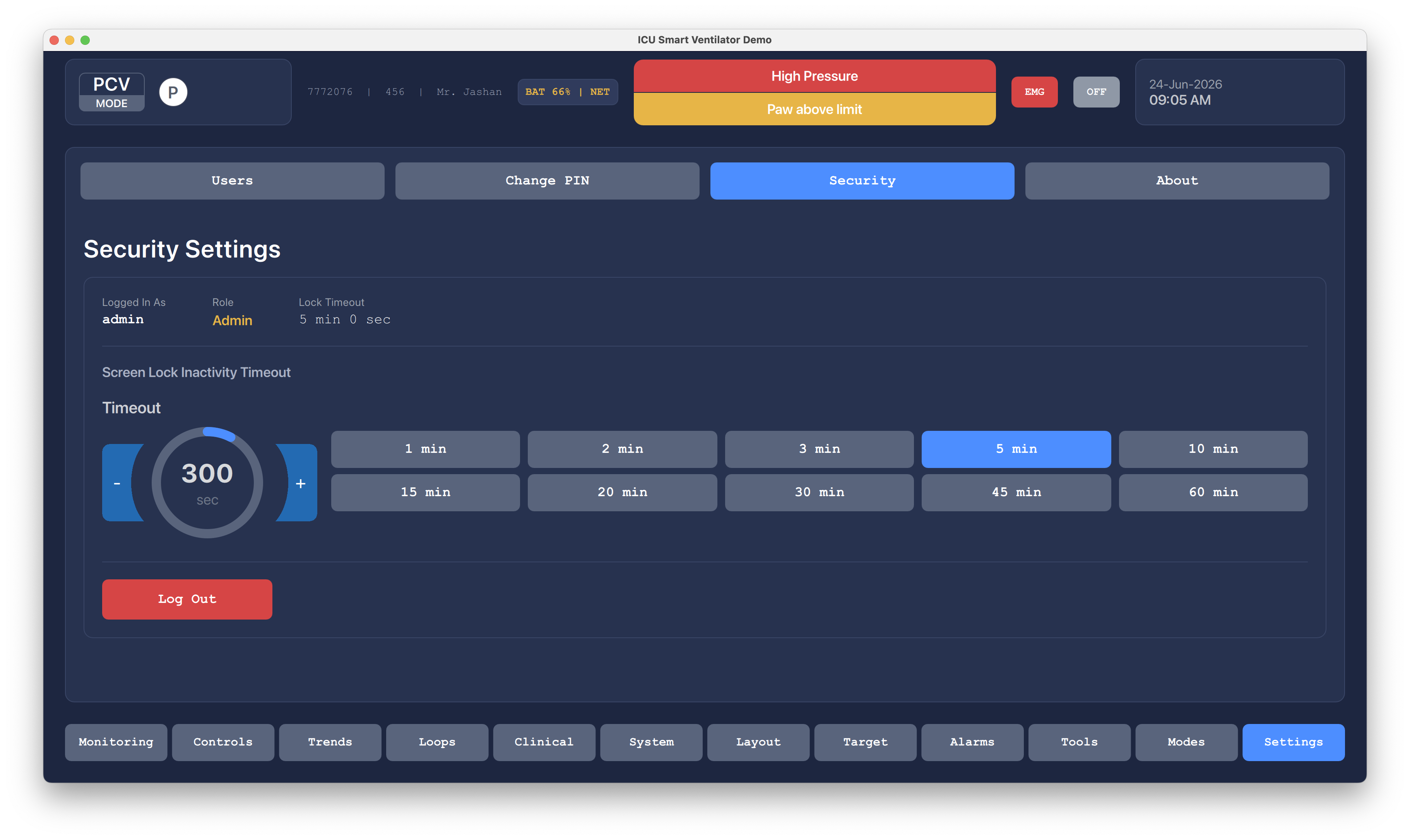
Recovery states show the same alarm language beside live waveform feedback, making it easier to see whether parameter changes are improving the situation.
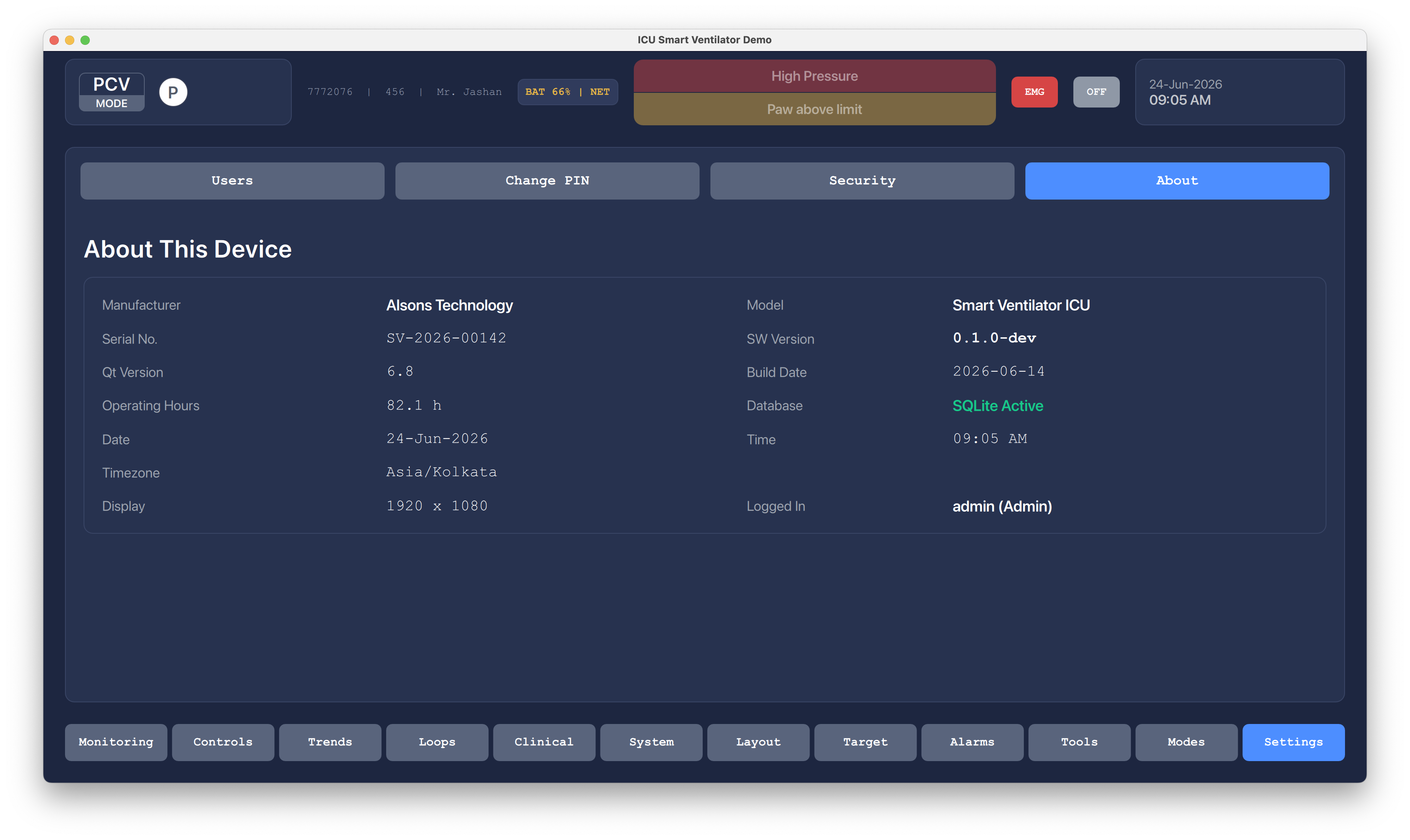
Service-focused screens keep maintenance activity discoverable while preserving the clinical header, alarm state, and device identity.
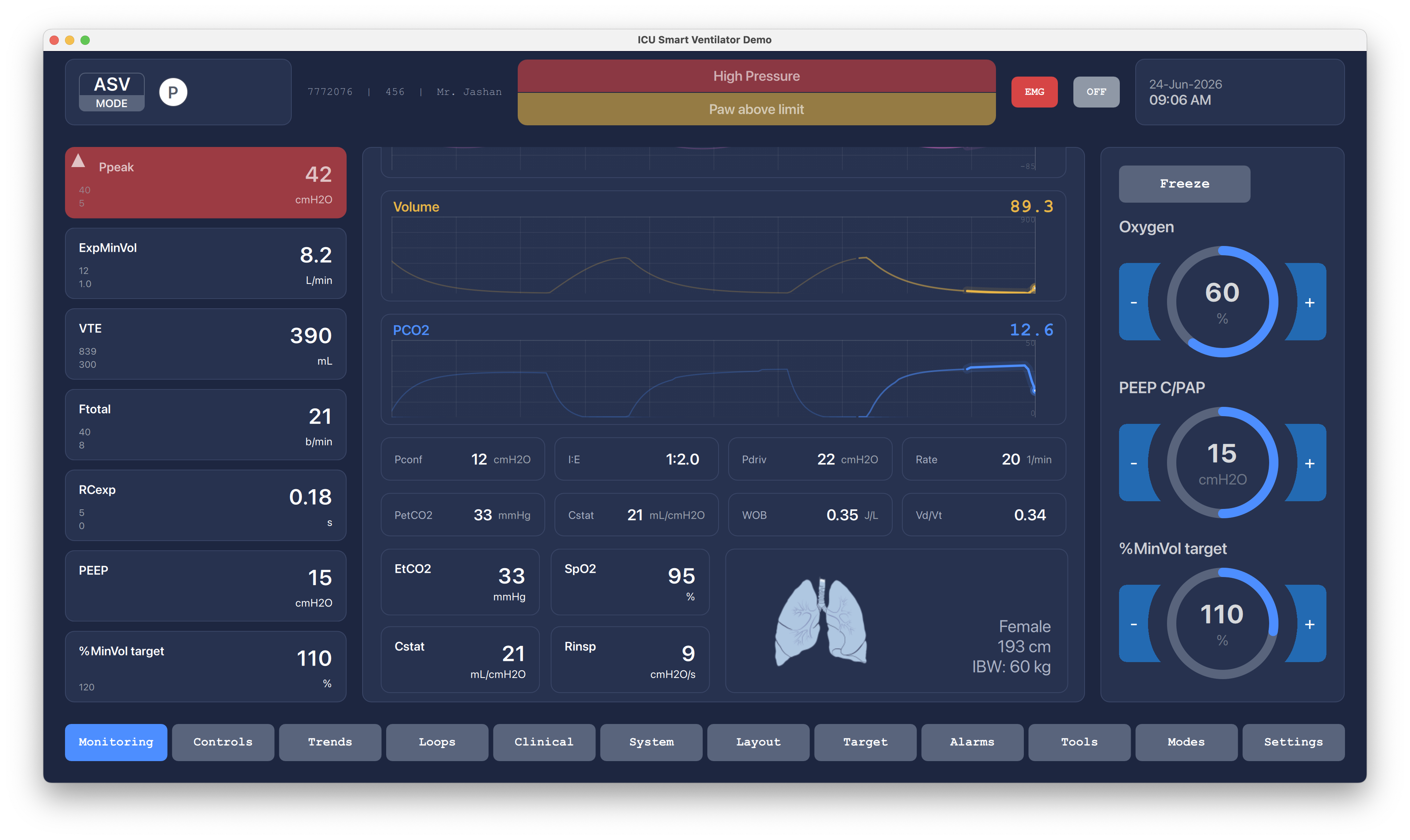
The final screen set shows the full bedside console pattern: persistent mode, patient identity, alarms, time, quick actions, and consistent bottom navigation.
Watch the project in action and explore the source code.
Access the complete project source code, including Qt/QML UI, C++ backend logic, and build configuration.
Related work

Full-featured car infotainment system built with Qt/QML featuring dual light and dark themes, navigation, media playback, climate control, EV battery management, voice assistant, driver profiles, vehicle status, safety settings, and a theme studio for cabin personalization.
A production-ready automotive infotainment interface with 22+ screens across light and dark themes, covering navigation, media, climate, EV energy, voice control, driver profiles, vehicle diagnostics, safety management, and complete theme customization.
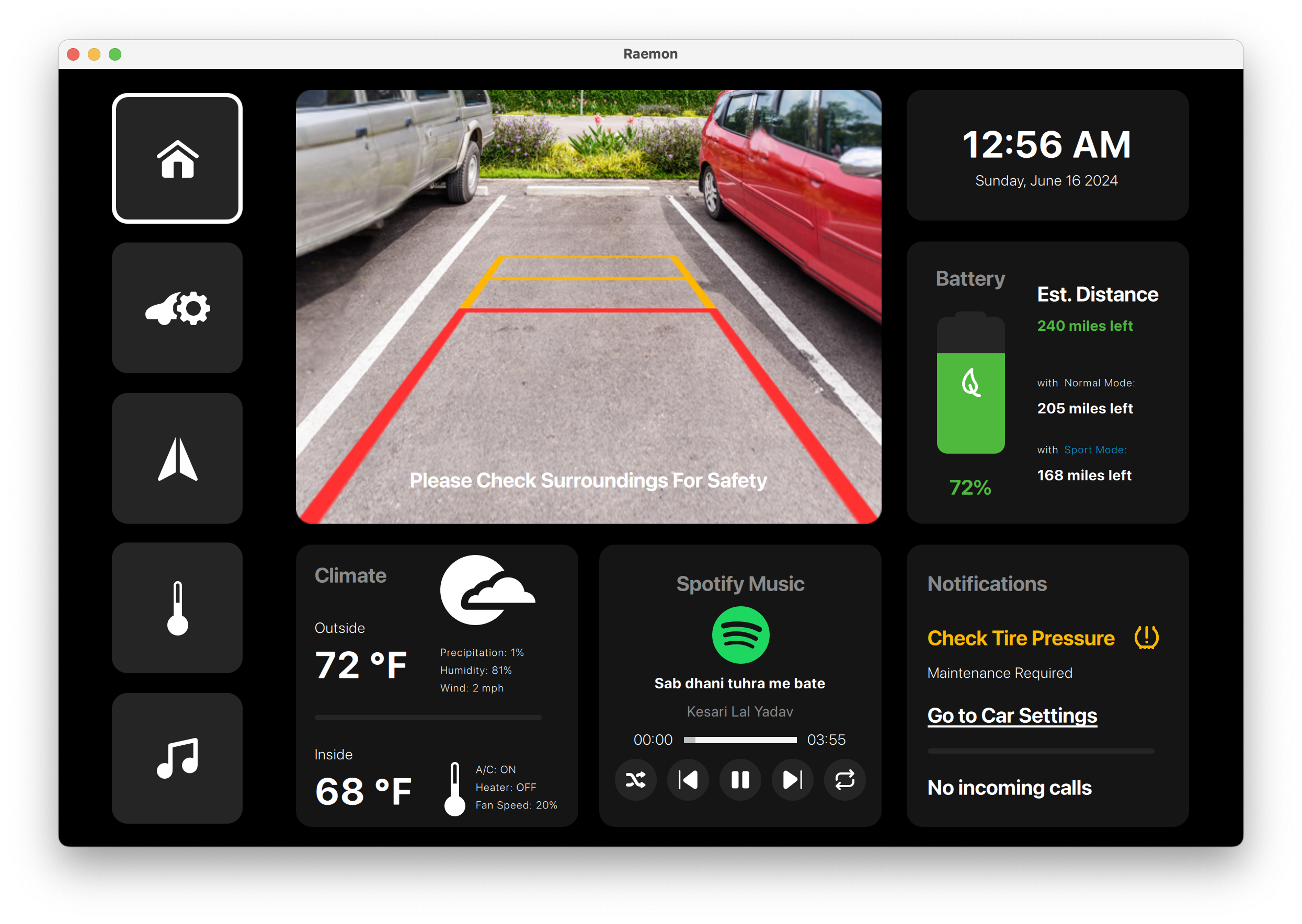
Automotive infotainment and vehicle-control console built with Qt/QML for camera, navigation, climate, media, tire pressure, and power controls.
A Reamon-branded vehicle console covering reverse camera, tire warnings, navigation, climate, seat comfort, media, and power-mode controls.
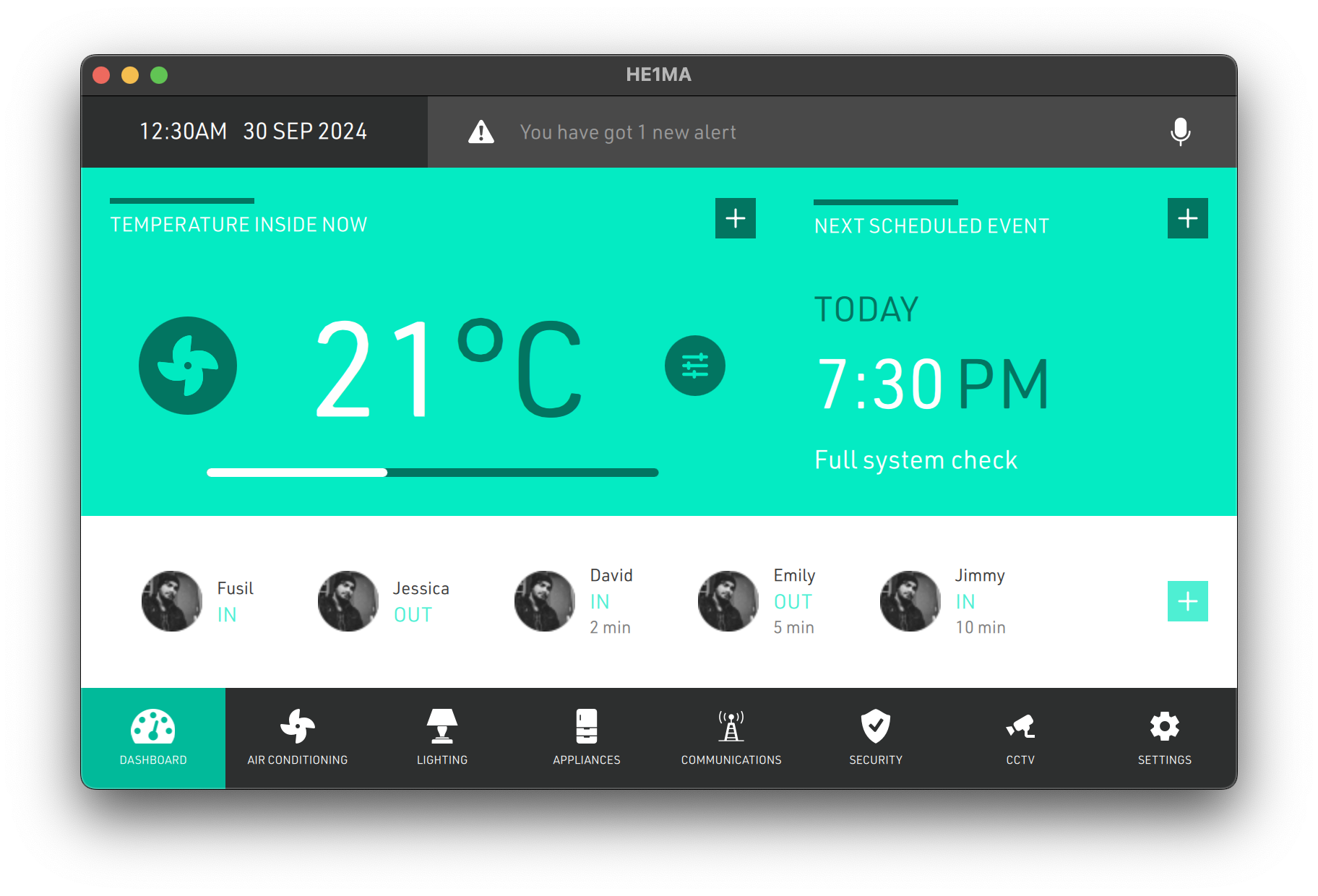
Smart home control interface built with Qt/QML for centralized device management.
Centralized home control UI for rooms, devices, scenes, and environment status.
Share your hardware target, UI scope, Qt version, and delivery timeline. We will provide a practical technical assessment.
